Control Point Editing Commands
Control point selection methods
Use the following commands to select control points to edit:
|
Select Operation
|
Command
|
|---|---|
|
Select multiple points
|
• Set the selection filter to  Box and drag a box around the points Box and drag a box around the points• Set the selection filter to  Lasso, left-click the mouse, and drag the pointer to draw a closed loop around the points Lasso, left-click the mouse, and drag the pointer to draw a closed loop around the points |
|
Select all the points in the row or column
|
Select a mesh bar line.
Column: 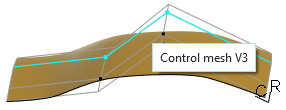 Row: 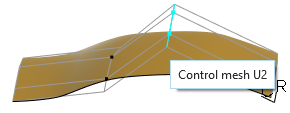 |
|
Select and drag all the points in the row or column
|
Select and drag a mesh line.
|
|
Select a group of points on the same row or column
|
Select the first point of the group, hold down the SHIFT key, and select the last point of the group.
|
|
Select all the points in a rectangular region
|
Select the first point of the group, hold down the SHIFT key, and select a point diagonal to the first point.
|
|
Clear all point selections
|
Right-click and choose Deselect All Points when any control point is selected.
|
|
Clear specific points from the selection
|
• Hold down the CTRL key, and click selected points to clear them from the selection.
• In the Selected Items dialog box:
a. Double-click the selected elements in the lower right corner of the status bar.  The Selected Items dialog box opens. 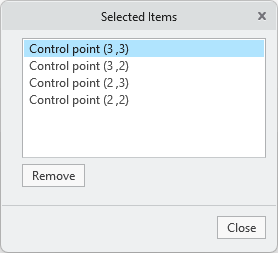 b. Select points to clear from the selection, and click Remove. |
|
Change the active nudge point
|
Select another control point. 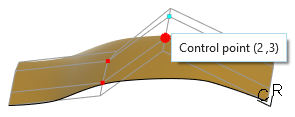 |
Control point manipulation methods
Use the following commands to manipulate control points:
|
Edit Operation
|
Command
|
|---|---|
|
Modify surface mesh
|
Select and drag one or more control points.
|
|
Move a point along bar
|
Hold down the ALT + SHIFT keys and select and drag a point.
|
|
Move a point along the plane of the screen
|
Hold down the ALT key and select and drag a point.
|
|
Nudge one or more points
|
Select one or more points and press the arrow keys.
|
Select one or more points and click  , ,  , ,  , or , or  . . |
|
|
Planarize all the points on a selected control row or column
|
Select a control row or column, right-click, and choose Planarize.
|
|
Change or remove a boundary constraint
|
Move the pointer over a mesh boundary, right-click, and choose Preserve None, Preserve Position, Preserve Tangency, or Preserve Curvature.
|
|
Remove all boundary constraints for the selected surface
|
Move the pointer over the surface, right-click, and choose Clear All Boundaries.
|