Simulation Quality
The fidelity of the results obtained for a live simulation depends on the following:
• The size of the part or body that is being analyzed relative to the overall size of the model geometry—The larger the overall geometry relative to a specific thin part, the lower the fidelity of the results.
• The global fidelity and local refinement settings—You can improve the fidelity of the results using the following control settings on the Performance Options group of the Live Simulation tab:
◦  Global Fidelity—Increasing global fidelity captures more geometric detail across all bodies but can increase computation time. Global fidelity applies uniformly and does not account for localized areas of interest. Move the slider to the right to increase the global fidelity for the body or component.
Global Fidelity—Increasing global fidelity captures more geometric detail across all bodies but can increase computation time. Global fidelity applies uniformly and does not account for localized areas of interest. Move the slider to the right to increase the global fidelity for the body or component.Use the configuration option sim_live_result_quality to set the overall default value of accuracy of live simulation. The value varies from 0.05 to 1.0, and can be changed by multiples of 0.05.
◦  Local Refinement—Use this setting to define the minimum element size created for specific bodies, parts or components in a model. Local refinement allows you to apply higher resolution to selected bodies, components, or assemblies while keeping a lower global fidelity for the rest of the model. This enables accurate results in critical regions without significantly impacting overall simulation performance. For analysis of geometry that is very thin compared to the rest of the model, you can define a smaller minimum size element.
Local Refinement—Use this setting to define the minimum element size created for specific bodies, parts or components in a model. Local refinement allows you to apply higher resolution to selected bodies, components, or assemblies while keeping a lower global fidelity for the rest of the model. This enables accurate results in critical regions without significantly impacting overall simulation performance. For analysis of geometry that is very thin compared to the rest of the model, you can define a smaller minimum size element.Display Element Size—Click  Display Element Size and then move the pointer over different areas of the model. The element size is displayed for different regions of the model. Visualizing element size helps you evaluate whether the current fidelity settings provide sufficient resolution for your model. It is especially useful when using global and local refinement settings together to balance accuracy and performance.
Display Element Size and then move the pointer over different areas of the model. The element size is displayed for different regions of the model. Visualizing element size helps you evaluate whether the current fidelity settings provide sufficient resolution for your model. It is especially useful when using global and local refinement settings together to balance accuracy and performance.Example: Using Global and Local Refinement to Improve Result Quality for Thin Geometry
In the following example a load is applied to a model with thin geometry as shown below:
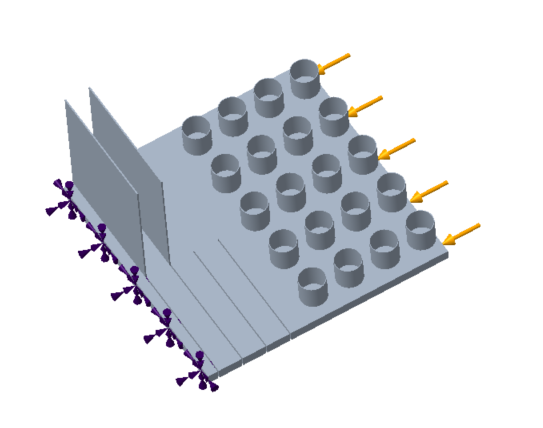
In this case we see the following output simulation with the value of the Global Fidelity slider at approximately 50% and no local refinement setting defined.
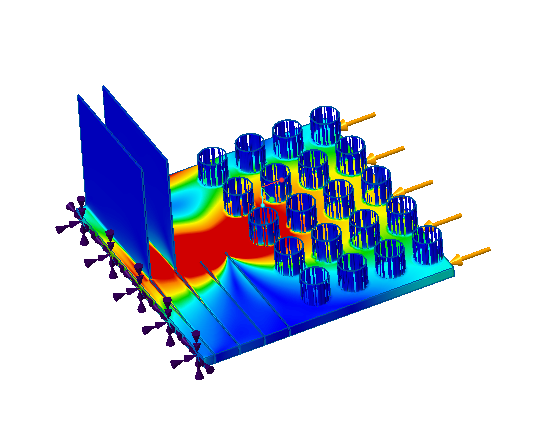
Results show incompletely resolved regions
The results show marked degradation in quality of the results for the region we are interested in studying. This is because the simulation is run on the geometry as a whole.
To identify the regions in the model with degradation in results perform the following steps:
1. Click  Inspect Deviation on the Display Options group. The areas in the model that are not completely resolved by the simulation study, and show degradation in results are highlighted as shown in the following figure.
Inspect Deviation on the Display Options group. The areas in the model that are not completely resolved by the simulation study, and show degradation in results are highlighted as shown in the following figure.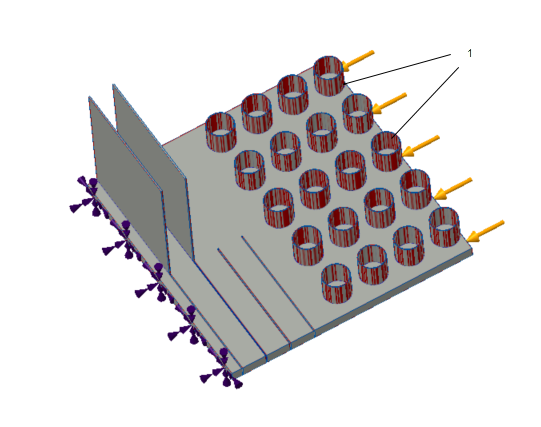
1. Incompletely resolved regions in the model are highlighted.
2. After identifying the regions in the model with degradation in results define local refinement for that body.
If we run the same simulation with the Simulation Quality slider still at 50 % but with a local refinement setting for the body with thin geometry the simulation results are as shown in the following figure:
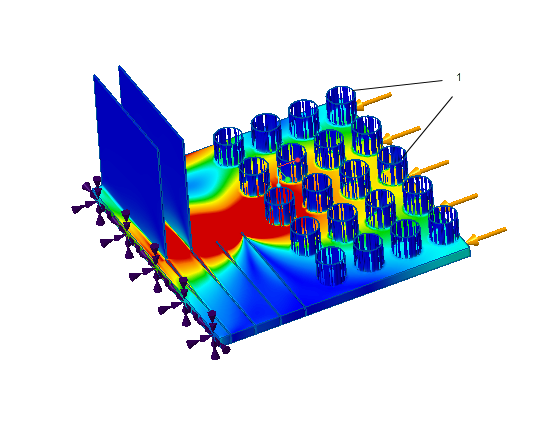
1. Results with local refinement applied to the body with the thin geometry.
Summary: Improving the Quality of Simulation Results
In order to improve the fidelity of live simulation results do one or all of the following:
• Use a larger graphics card (more memory and faster clock speed)—This allows you to simulate larger problems with more detail.
• Simulate smaller problems—Try to split the model into smaller regions for simulation and run a separate simulation of the smaller region. Apply appropriate boundary conditions that exist for the smaller region when it is a part of the entire geometry.
• Define local refinement with smaller minimum element size for the region in the model where you see degradation of results.
• Use the configuration option sim_live_result_quality to set the default value of accuracy of live simulation. The value varies from 0.05 to 1.0, and can be changed by multiples of 0.05.