Tapped Hole

A tapped hole has threads cut into the inside surface. Threaded components like screws or bolts can be fastened to the threading.
In the model, the full geometry of the threading is not created in the hole. Instead, a quilt that represents the larger outer diameter of the screw or bolt is created.
This example shows the lower part of two parts being joined. A tapped hole is made in the lower part so an M5 bolt can be fastened to the threading of the lower part after passing through the upper part. You can see the upper part in the related topic Clearance Hole.

1. To place the hole:
a. On the Placement tab, with the Placement collector active, click the top surface at the location you want the hole.

b. Click the Offset References collector, and do the following:
i. Click the RIGHT datum plane, click the arrow next to Offset, and select Align.
ii. Hold down the CTRL key while you click the FRONT datum plane, then click the arrow next to Offset, and select Align.
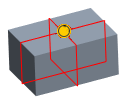
2. On the Hole tab, under Type, click  Standard.
  Tapped is selected.
Standard. Tapped is selected.3. Under Size:
a. Next to  Thread type, select ISO.
Thread type, select ISO.b. Next to  Screw size, select M5x.8.
Screw size, select M5x.8.4. Under Depth, next to  , type the hole depth.
, type the hole depth.5. Click the Shape tab, and type the depth of the threading next to .
.
6. Click  OK.
OK.
OK.