Redefining Mating Features
You can redefine mating features in an existing stackup. This is useful if you selected the wrong feature when you first created the stackup, or if you want to evaluate a different path of mating features in the part loop of the stackup.
To redefine a mating feature:
1. Click Stackup Table in the EZ Tolerance tab. The EZ Tolerance Analysis dialog box opens.
2. Click  to see the details of a stackup.
to see the details of a stackup.3. Right-click the mating feature of the component in the stackup table.
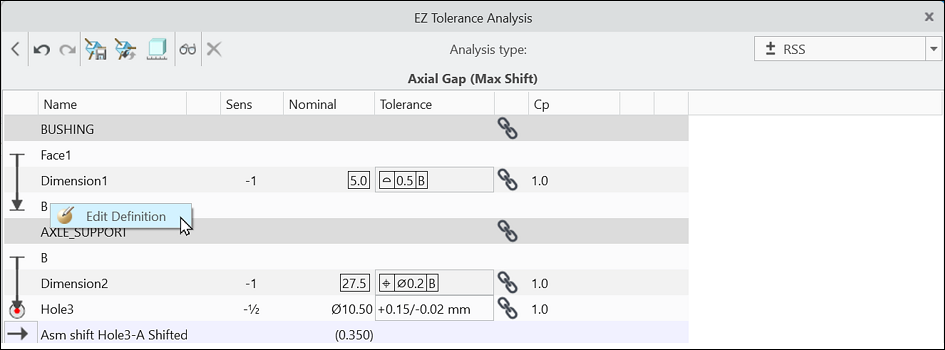
4. Select Edit Definition from the context menu. The Edit Feature Definition dialog box opens.
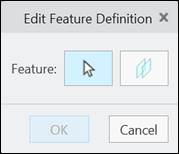
5. Select a different feature from the same component to replace the mating feature.
6. Click OK. The stackup updates based on the selected mating feature.
 | The Edit Definition command is available only for the mating features between two components in the stackup table. The start and end features of the stackup cannot be redefined. Intermediate features between the two mating features of a component cannot be redefined using the Edit Definition command. However, you can add, delete, or reorder these features. For more information, see Adding Features. You cannot redefine the components in the stackup. This means that you cannot add components to the stackup or remove components from it. |