Duplicating a Stackup
You can duplicate an existing stackup to evaluate the same stackup measurement using different analysis settings. For example, you can compare results with different assembly shift settings (Maximize or Minimize), stackup objectives (tolerance type or value), or analysis types (Worst Case or RSS).
To duplicate an existing stackup:
1. Click Stackup Table in the EZ Tolerance tab. The EZ Tolerance Analysis dialog box opens.
2. Optionally, click  in the top-left of the stackup details table to return to the list of tolerance stackups.
in the top-left of the stackup details table to return to the list of tolerance stackups.3. Right-click the stackup that you want to duplicate.
4. Select  Duplicate from the context menu.
Duplicate from the context menu.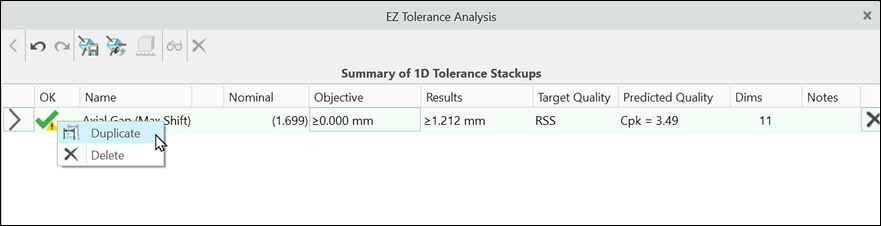
A copy of the selected stackup is created and added to the list.
5. Click  to see the details of the stackup and to make desired changes.
to see the details of the stackup and to make desired changes. | Duplicated stackups share dimensions with the original stackup. When you change a tolerance in one stackup, the same change appears in the other stackup. For more information about how stackups share features and dimensions, see Adding Stackups. |