Setting Up Creo
In Creo, you can customize the user interface or setup your working environment and manage the configuration options using the Options dialog box.
To access the dialog box, click > . The Creo Parametric Options dialog box opens.
The dialog box displays different groups that correspond to different areas that you can customize or modify related settings. Click on the pages listed in the dialog box to customize or modify the settings.
You can search for settings or options within the dialog box using the dialog search tool. The search functionality enables you to find settings in the dialog box faster and preview the location of the settings on the user interface. Click a setting in the search list to open the corresponding user interface. You can make changes to the search settings to provide more relevant and specific search results. To refine the search results, click. The Dialog Search Settings dialog box opens, select criteria from the Match criteria group. The search tool displays the search results based on the criteria set.
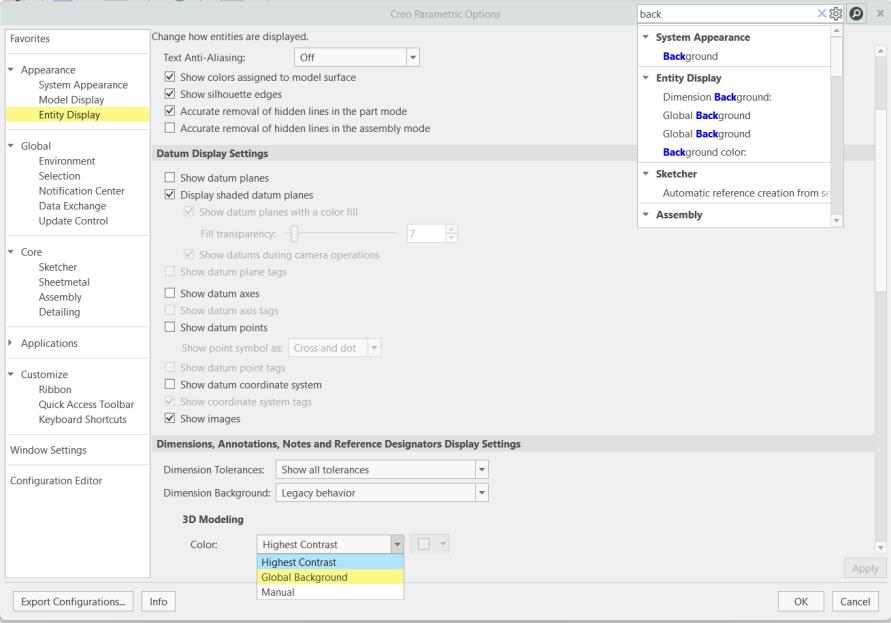
In the Creo Options dialog box, you can set the following groups of options:
Favorites
Displays your favorite configuration options. You can quickly change the settings of a configuration option here. To add options to this list, right click a configuration option from the Configuration Editor and select Add to Favorites.
Appearance
In this group, you can change the system colors and modify appearances of the model and entities in Creo. For detailed information, see Appearance
Global
In this group, you can make changes to the following:
• Change settings for object selection. For detailed information see, Selection.
• Change settings for the Notification Center. For detailed information, see Notification Center
• Change the settings that control the exchange of data between Creo and the supported 2D and 3D formats.For detailed information, see the following:
• Set options for data sharing features and update control. For detailed information, see To Set Options for Data Sharing Features and Update Control
Core
In this group, you can modify settings for Creo modules such as Sketcher, Sheetmetal, Assembly, and Detailing. For detailed information see:
• Sketcher
• Assembly
• Detailing
Applications
In this group, you can modify settings for applications supported in Creo. For detailed information see the following:
Customize
In this group, you can modify the user interface, ribbon, and toolbars in Creo. For detailed information, see Customize.
Windows Settings
In this group, you can customize the layout and look of the display window. For detailed information, see Windows Settings.
Configuration Editor
In this group, you can search, display, and modify the configuration options in Creo.
For detailed information , see Configuration Editor.
Saving the Customized Settings
When you customize settings in the Options dialog box , these changes are saved to a configuration file.
The changes related to the following are stored in a .ui file:
• Change system appearance
• Change the layout of the Creo window
• Set the selection options
• Set the graphics window to the full screen mode
• Customize the ribbon interface
• Customize the mini toolbar and the Quick Access toolbar
• Customize keyboard shortcuts
The changes related to the following are stored in config.pro file:
• View and manage favorite options
• Change environment options
• Change how the model and entities are displayed
• Set options for objects display, grid, style, and constraints
• Set options for component, operations, and referencing
• Set options for data exchange
• Set Sheetmetal options
• View and manage licensing and configuration options