Trim Ply Boundary by Reference
1. Select one or more plies to trim.
◦ Select the plies individually in any order from the Laminate Tree or from the graphics window.
◦ Select the plies from the graphics window using box selection:
▪ Drag the box from left to right to select the plies inside the box.
▪ Drag the box from right to left to select the plies that intersect the box.
2. Click >  Trim Ply. The Trim/Extend Ply tab opens.
Trim Ply. The Trim/Extend Ply tab opens.3. Under Method, select  By Reference if not selected by default.
By Reference if not selected by default.4. In the Trimming object box, specify a reference to trim the ply. You can select connected edges, chain segments, a chain, or a closed loop. You can also select a plane.
The boundary to keep is highlighted in the graphics window.
5. To add all the plies that are intersected by the selected trimming object to the Plies box, click Add Intersected Plies.
6. To switch between boundary to keep and boundary to trim, click Flip Side.
7. Click  OK.
OK.
OK.Example—Trim by Curve
You can trim a ply by specifying a curve as a trimming object.
The following graphic shows a composite model with a ply and a curve that is used for trimming the ply. You can use the Flip Side action to select the side of the curve to keep as the ply area.
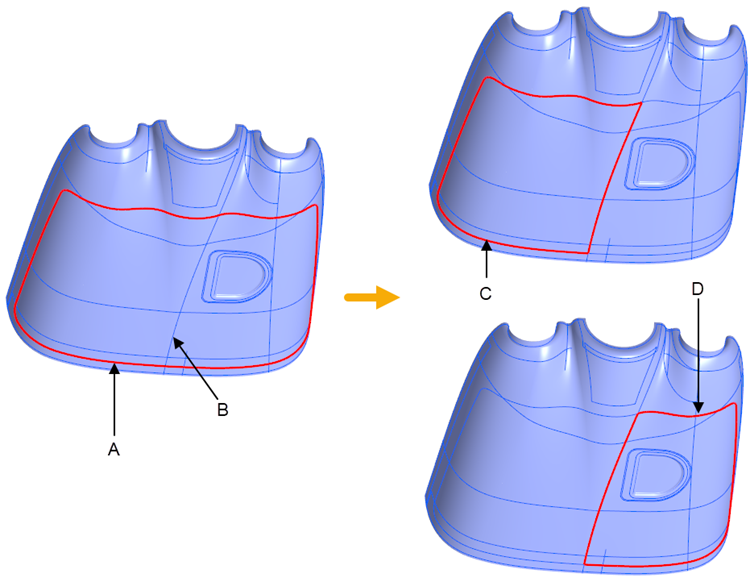
• A—Original ply boundary
• B—Trimming object
• C—New ply boundary without applying Flip Side
• D—New ply boundary after applying Flip Side
Example—Trim Multiple Plies
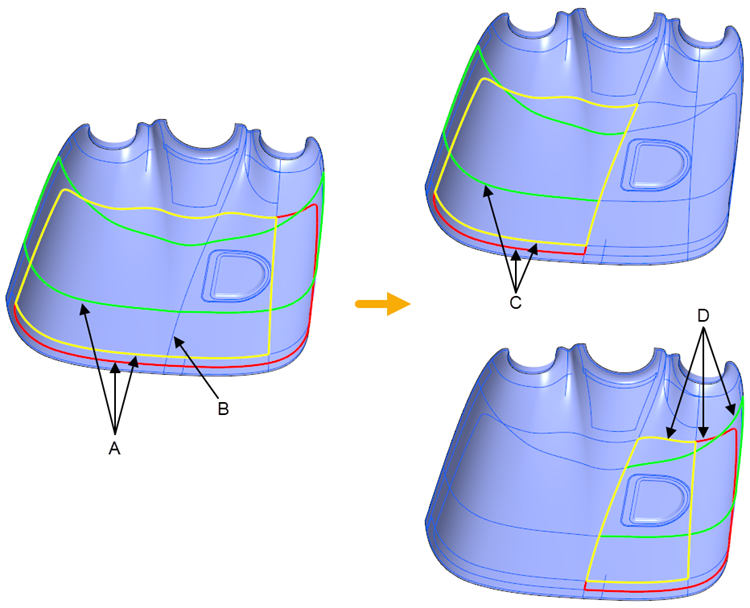
You can trim multiple plies at once by specifying a single trimming object.
The following graphic shows a composite model with a ply and a trimming object that is used for trimming the ply. You can use the Flip Side action to select the side to keep as the ply area.
Example—Trim by Plane
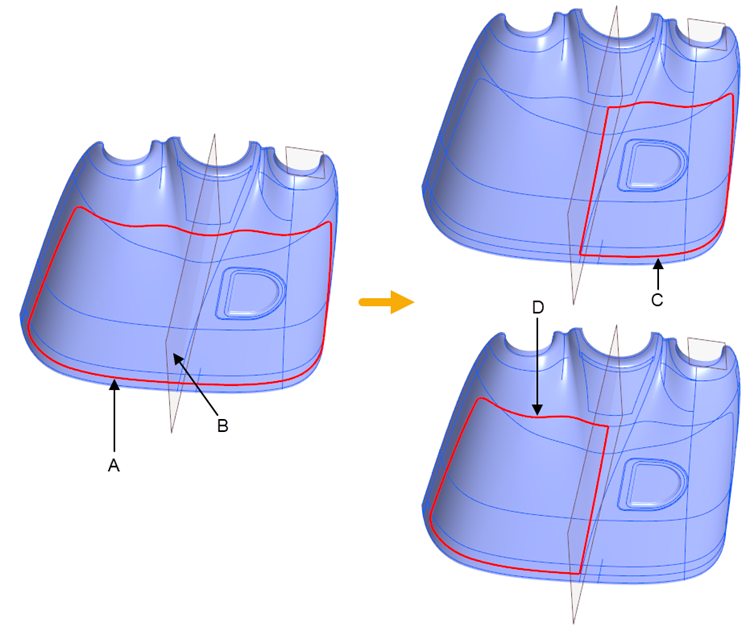
You can trim a ply by specifying a datum plane as a trimming object.
The following graphic shows a composite model with a ply and a datum plane that is used for trimming the ply. You can use the Flip Side action to select the side of the plane to keep as the ply area.
Example—Trim an All-around Ply
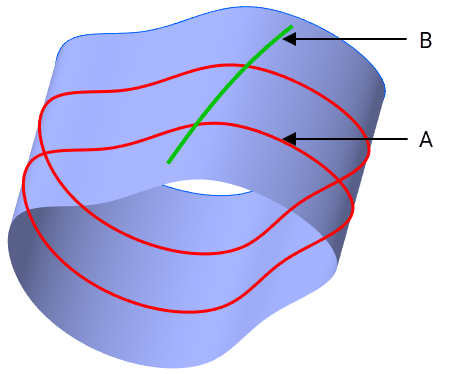
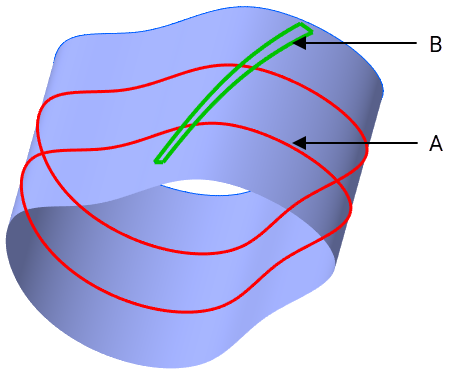
When trimming an all-around ply, select a trimming object with sufficient width to create a gap between the resulting edges. An example of a suitable trimming object is shown as follows:
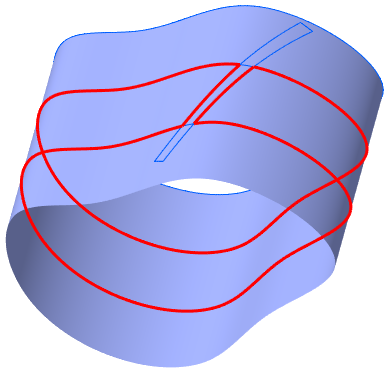
The result of trimming is shown as follows:
An example of an unsuitable trimming object is shown as follows: