Enhancement: Highlight New
Creo Parametric 12.4.0.0
User Interface Location: Home tab in Creo Parametric
Videos
Description
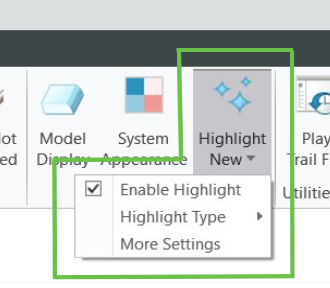
In Creo Parametric, a new setting enables you to highlight new features, tools, or options. When the setting is enabled, the new features, tool, or options are highlighted or marked with a small blue flag in the corner of the button. You can select the highlight style from the dropdown menu available.
To turn the setting on or off:
1. Click the Highlight New button on the Home tab.
2. Select or clear the Enable Highlight checkbox from the dropdown. The option is selected by default.
In the dropdown menu, click Highlight Type to select the highlight style for new features, tool, or options.
Alternatively, you can click on More Settings from the dropdown menu. The Creo Parametric Options dialog box opens. In Windows Settings pane, under Highlight New Functionality, you can change the settings for the highlight functionality.
The Reset Highlights option restores the highlight settings to their default state.
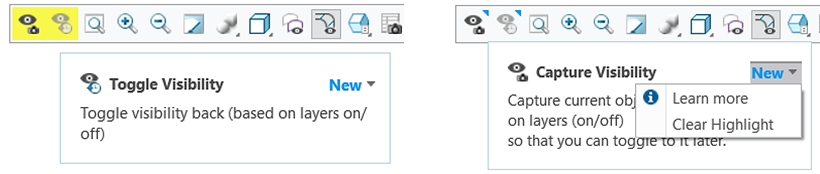
This enhancement also introduces two functionalities that can be accessed in the dropdown menu for New.
• Learn more—Opens the What's New documentation for the tool, feature, or option marked as New.
• Clear Highlight—Removes highlight from the tool, feature, or option.
Benefits
This enhancement provides a clear indication of the user interface changes that have been introduced since the last update of Creo.
Additional Information
Tips: | None. |
Limitations: | No known limitations. |
Does this replace existing functionality? | No. |
Configuration option associated with this functionality: | None. |