GD&T Advisor Enhancement: Improved Alignment of Accept or Cancel Behavior and Context Menus with Creo Conventions
Creo+
User Interface Location: In the GD&T Advisor tab, right-click an item in the Feature Tree or Advisor Tree.
Description
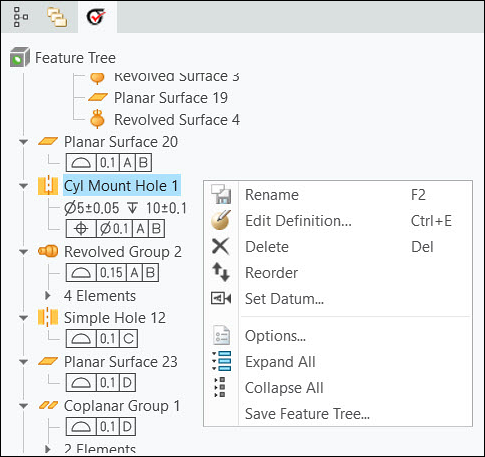
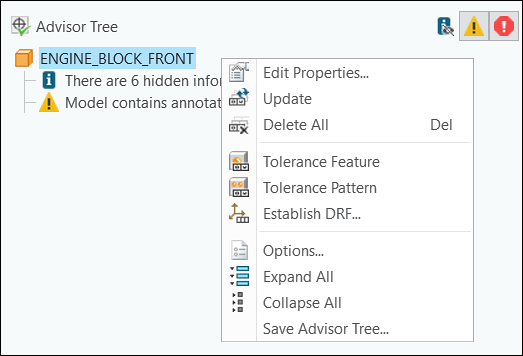
Icons and command names used in Feature Tree and Advisor Tree context menus are now aligned with standard Creo conventions.
The context menu in the Feature Tree appears as follows:
The context menu in the Advisor Tree appears as follows:
You can also use standard shortcuts to accept or cancel feature creation in GD&T Advisor application.
• Esc—Cancels feature creation.
• Middle mouse button—Accepts the feature creation.
Benefits
This enhancement aligns user experience of GD&T Advisor with Creo.
Additional Information
Tips: | None. |
Limitations: | No known limitations. |
Does this replace existing functionality? | No. |
Configuration option associated with this functionality: | None. |