Example: User-Defined Parameters
In the following example, the contents of a user-defined parameter file in the XML file format are displayed for the MILL workcell type. For each workcell type, define a separate <MfgSeqUDParamCollection Type="workcell type" Name="workcell name" SubType="workcell subtype"> tag in the user-defined parameter XML file. The workcell type is case-sensitive and must be one of the following types:
• MILL
• MILL-TURN
• LATHE
• WIRE EDM
The workcell subtype is case-sensitive and must be one of the following types:
• MILLING
• DRILLING-MILL
• TURNING
• DRILLING-TURN
 |
• Specifying the workcell name and subtype in the XML file is optional.
• If you specify the value of the SubType attribute without specifying the value of the Name attribute for a workcell in a definition, then such a definition is ignored.
|
The following data types are supported for the user-defined parameters:
• string
• integer
• double
The applicability of the user-defined parameters is determined based on the following hierarchical evaluation order:
1. Type, Name, Subtype
2. Type, Name
3. Type
This order is applied across all valid definitions within the XML configuration. Each level in the hierarchy is checked sequentially. If a match is found at a higher level, lower levels are not evaluated.
Consider the following examples of definitions for applicability of user-defined parameters according to the hierarchical evaluation order:
• <MfgSeqUDParamCollection Type="MILL_TURN" Name="MILLTURN01" SubType="DRILLING-MILL">
This definition applies only to all drilling features created from the Mill tab under the MILLTURN01 workcell of the MILL_TURN type.
• <MfgSeqUDParamCollection Type="MILL_TURN" Name="MILLTURN01" SubType="TURNING">
This definition applies only to all turning features created under the MILLTURN01 workcell of the MILL_TURN type.
• <MfgSeqUDParamCollection Type="MILL_TURN" Name="MILLTURN01">
This definition applies to all features of mill or turn created under the MILLTURN01 workcell of the MILL_TURN type.
• <MfgSeqUDParamCollection Type="MILL_TURN">
This definition applies to all features of mill or turn created under any workcell of the MILL_TURN type.
The following image shows sample content of the user-defined parameter XML file:
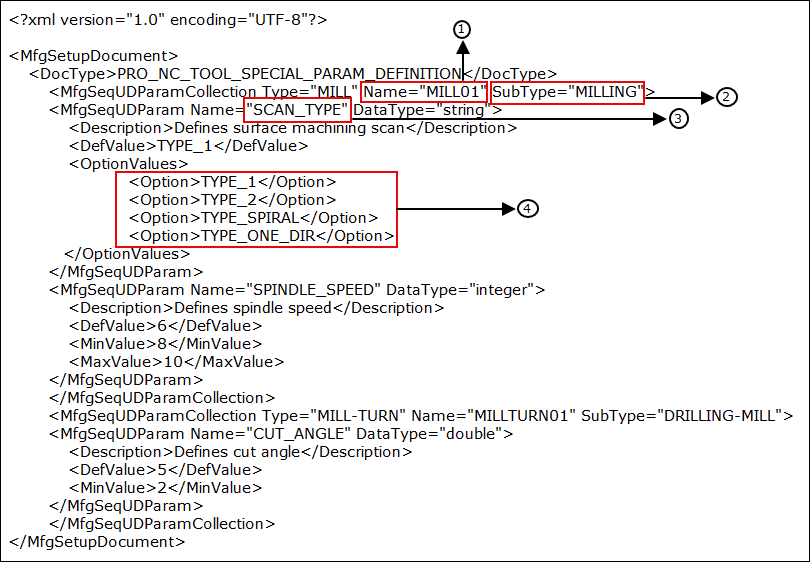
1. Workcell name
2. Workcell subtype
3. User-defined parameter name
4. Values of the user-defined parameter
1. Set the mfg_custom_sequence_param_file configuration option to point to the path where the user-defined parameter XML file is stored.
2. Open the manufacturing model. Ensure that the active operation references a workcell.
3. Click the Parameters tab when defining an NC sequence.
4. On the Parameters tab, click  .
.
.The User-Defined Parameters dialog box opens. The parameters defined in the user-defined parameters XML file are parsed and displayed in the dialog box.
You can modify a value for each parameter. However, the values you specify in the User-Defined Parameters dialog box for each parameter must be in accordance with the restrictions imposed, if any, for that parameter in the user defined parameter file. For example, in the user defined parameter file above, the parameter SPINDLE_SPEED can have a minimum value of 3000 and maximum value of 40000. If the value you enter is less than 3000 or greater than 40000, Creo NC displays an error message.
If you want to add or delete parameters or modify one or more existing parameters, you can do so only in the user-defined parameters XML configuration file. After making the necessary modifications, save the *.xml file and reopen the manufacturing model for which you edited the parameter definitions. You are prompted to confirm whether you want to load the new definitions or retain the existing definitions. Click Yes to load the new definitions. Then click > on the Manufacturing tab and confirm that you want to update.
| | • If you update the existing sequences to apply new parameter definitions, the current parameter values are replaced with the default parameter values. • It is recommended to use the Update User-Defined Parameters command to match the updated definitions every time after you reload the modified XML file on model retrieval. |
For more information on updating user-defined parameters, see Updating User-Defined Parameters.