宽带源模型仿真练习 3 - 准备网格
生成网格
流体域的网格
1. 在 Flow Analysis 树中,选择“域”(Domains)。
2. 在“属性”(Properties) 面板的“网格”(Mesh) 选项卡中,对于“网格生成”(Mesh Generation),选择“所有体积块”(All Volumes) 作为“网格位置”(Mesh Location)。
3. 对于“边界框边距”(Bounding Box Margins) 下拉列表,选择“非均匀”(Nonuniform),并输入以下值:
a. “最小侧面尺寸”(Minimum Side Sizes):0.5, 0.5, 6
b. “最大侧面尺寸”(Maximum Side Sizes):0.5, 0.5, 24
4. 对于网格生成列表,输入以下值:
a. “最大单元大小”(Maximum Cell Size):0.05
b. 最小单元大小:0.00005
c. “曲面单元大小”(Cell Size on Surfaces) - 0.025
5. 对于“创建细化区域”(Create a Refinement Zone),选择“圆柱区域”(Cylindrical Zone),并为“圆柱区域”(Cylindrical Zone) 细化指定以下参数:
◦ “单元大小”(Cell Size):0.0125
◦ “顶部圆心”(Top Circle Center):0, 0, -0.03 m
◦ “底部圆心”(Bottom Circle Center):0, 0, 0.03 m
◦ “区域半径”(Zone Radius) - 0.14 m
6. 单击  “生成网格”(Generate Mesh) 为流体域创建网格。
“生成网格”(Generate Mesh) 为流体域创建网格。7. 在 > 下,右键单击 PROPELLER_Body_1_1 并选择“移除”(Remove),以删除实体推进器网格,仿真不需要此网格。
8. 在“普通边界”(General Boundaries) 的“界面”(Interface) 下右键单击 propeller_side1,然后选择“分隔和连接”(Separate and Connect)。将在“失配网格界面”(Mismatched Grid Interface) 下创建 MGI01。
9. 在“普通边界”(General Boundaries) 的“界面”(Interface) 下右键单击 propeller_side2,然后选择“分隔和连接”(Separate and Connect)。将在“失配网格界面”(Mismatched Grid Interface) 下创建 MGI02。
10. 在“普通边界”(General Boundaries) 的“界面”(Interface) 下右键单击 propeller_top,然后选择“分隔和连接”(Separate and Connect)。将在“失配网格界面”(Mismatched Grid Interface) 下创建 MGI03。
查看网格
1. 在“后处理”(Post-processing) 组中,单击“剖视图”(Section View)。“截面 01 属性”(Section 01 Properties) 对话框随即打开。按如下所示设置选项的值。
◦ “类型”(Type) - Plane X
◦ “任意平面”(Arbitrary Plane) - 0
2. 单击“确定”(OK) 关闭对话框。
3. 将在“Flow Analysis 树”(Flow Analysis Tree)“结果”(Results) 中的“衍生曲面”(Derived Surfaces) 下创建 Section 01。
4. 选择 Section 01。单击  “显示”(Show) 以显示横截面。
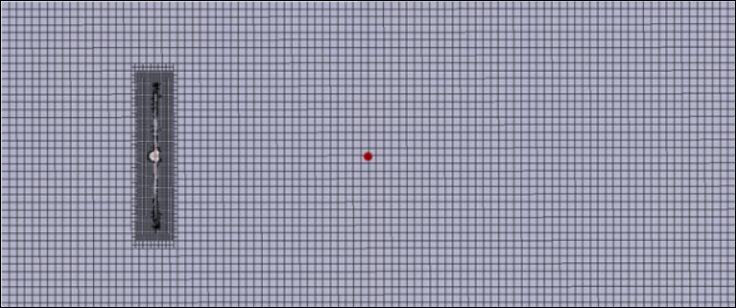
“显示”(Show) 以显示横截面。5. 在“属性”(Properties) 面板的“视图”(View) 选项卡中,对于“网格”(Grid),选择“是”(Yes)。此时会显示网格,如上图所示。