在 Azure Virtual Desktop 上安装 Creo+
可以从 Azure Virtual Desktop 安装并运行 Creo+。
在 Azure Virtual Desktop 上安装 Creo+ 的先决条件
在 AVD 上安装 Creo+ 之前,请确保满足以下条件。
• 您的组织已创建和管理 Azure Virtual Desktop (AVD) 实例。
• 管理员已将 AVD 分配给启用了 SSO 配置的用户 - 用户可以使用公司登录凭据登录 AVD。
• 用户已安装 Windows 应用,并使用该应用连接到 Azure Virtual Desktop。这是连接 AVD 的推荐且安全的方式。
在 Azure Virtual Desktop 上安装 Creo+
执行以下步骤以在 AVD 上安装 Creo+。
1. 从计算机中打开 Windows 应用。
2. 选择分配的 AVD 并使用单一登录进行身份验证。完成身份验证后,您将登录到 Azure Virtual Desktop 环境
4. 在 Creo+ Portal 的“主页”(Home) 页面中,单击“下载 PTC Control Center”(Download PTC Control Center) 框中的“下载”(Download),以下载安装文件 ptccontrolcenter.msi。
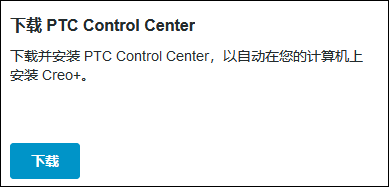
安装文件 ptccontrolcenter.msi 将下载到 AVD 的 Downloads 文件夹中。
5. 双击 ptccontrolcenter.msi,开始在 AVD 上安装 PTC Control Center。
6. 登录 Creo+ 门户验证登录详情。
 显示在系统托盘中。
8. 成功安装 PTC Control Center 后,它会自动下载 Creo+ 并将其安装到 AVD 上,同时为您提供对分配给您的所有许可证的访问权限。