Working with the Creo AI Assistant
The first time you start the Creo AI Assistant, you are prompted to sign in.
To sign in:
1. Click the  Creo AI Assistant command in Creo.
Creo AI Assistant command in Creo.2. Enter your registered credentials.
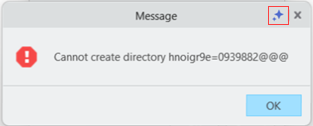
After you sign in, the assistant opens as a dockable panel in the Creo window. You can also access it from selected error messages, as shown in the images below.
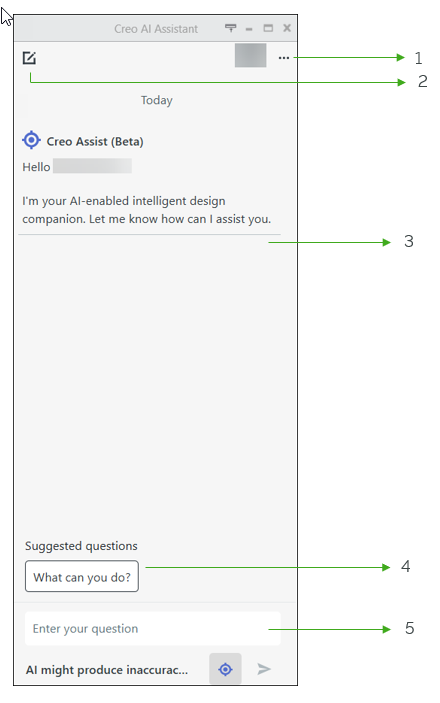
1. Click  to access the version details, download options, and to switch organization.
to access the version details, download options, and to switch organization.◦  Download—Download the chat history and log files.
Download—Download the chat history and log files.◦  Delete Conversation—Deletes the current chat conversation and clears the conversation history.
Delete Conversation—Deletes the current chat conversation and clears the conversation history.2. Click  to start a new chat session.
to start a new chat session.Users with an Advanced AI entitlement can select between the Creo Advise and Creo Assist agents.
 | Switching agents starts a new chat session, and clears all conversation history. |
3. Conversation area—Displays the system greeting and the conversation history.
4. Suggested questions—Provides commonly used prompts to help you get started quickly.
5. Prompt box—Enables you to enter prompts and submit them to the AI assistant.