Example: Create a guided loft using weights
You can change the importance of a profile by increasing or decreasing the weight value. Changing the weight will change the shape. Weight values range between 0 and 3.
Default weight values include:
• One profile: The weight option is disabled.
• Two profiles: The default weight for each profile is 0. The profiles are linearly blended.
• More than two profiles: The default weight is 1. A smooth transition between two adjacent pairs of profiles is created.
 |
When more than two profiles are selected, small values for inner profiles can lead to poor curvature behavior of the surface around the profile. The weight should not be made much smaller than 1. Use the Surface Analysis tool to verify an acceptable result when using a small weight.
|
Edges for guided loft using weight:
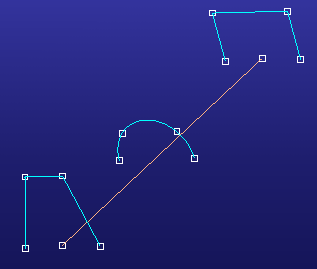
Initial result of guided loft:

Result after changing the weight of the middle profile:

To change the weight,
1. Activate the Surfacing module.
a. Click > . The Modules dialog box opens.
b. On the Modules pane, click Surfacing under Licensed.
2. Click Surfacing and then, in the Advanced Surfacing group, click  Guided Loft. The Guided Loft and Select dialog boxes open.
Guided Loft. The Guided Loft and Select dialog boxes open.3. In the Guided Loft dialog box, under Variation Options, click Change Weight.
4. Select the profile for a weight change by clicking on a profile edge.
5. Type a value from 0 to 3 in Weight and press the ENTER key.
6. To reset the weight to the default value, click Reset Weights.