Dimension drilled holes in Creo Elements/Direct Annotation
You can add dimensions to all parts, a single part, or a single hole. You can also choose whether to add dimensions to the sheet or a view.
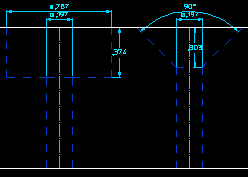
To dimension a single hole,
1. In Creo Elements/Direct Annotation, click Part Library and then, in the Drill group, click the arrow next to  Dimension.
Dimension.2. Click  Single. The Single hole dialog box opens.
Single. The Single hole dialog box opens.3. Select a hole either from the Structure Browser or from the Viewport. Expand the part so you can see the hole feature(s) and double-click the hole feature you want to dimension.
4. Select the View where you want the dimension displayed.
5. Click OK  to complete the operation.
to complete the operation.To dimension one or more parts,
1. In Creo Elements/Direct Annotation, click Part Library and then, in the Drill group, click the arrow next to Dimension.
Dimension.2. Select from one of the following options:
◦ All - Curr. Sheet: to add dimensions to all drilled holes in the current sheet.
All - Curr. Sheet: to add dimensions to all drilled holes in the current sheet.◦  All - View: to add dimensions to a view that you select.
All - View: to add dimensions to a view that you select.◦  Part - Curr. Sheet: to add dimensions to all drilled holes in a current part.
Part - Curr. Sheet: to add dimensions to all drilled holes in a current part.◦  Part - View: to add dimensions to a drills in a parts of a view.
Part - View: to add dimensions to a drills in a parts of a view.3. Select the following as necessary:
◦ Select a Part in the Structure Browser.
◦ Select a View in the viewport.
4. Click OK to complete the operation.
to complete the operation.