Creo Elements/Direct Cabling Tutorial 11: Step 4 of 5
Transfer the model to Creo Elements/Direct Annotation
Now you can transfer your model, along with the flat view of the harness, to Creo Elements/Direct Annotation to generate a drawing.
To send your harness to Creo Elements/Direct Annotation,
1. Start the Creo Elements/Direct Annotation module.
2. Click Interface and then, in the Annotation group, click  Fit flatcable to drawing. The Fit to Sheet dialog box opens. Select a frame size.
Fit flatcable to drawing. The Fit to Sheet dialog box opens. Select a frame size.3. Click Interface and then, in the Annotation group, click the arrow next to  Annotation.
Annotation.4. Click Harness drawing to Annotation. The To Annotation dialog box opens.
Harness drawing to Annotation. The To Annotation dialog box opens.5. Click OK  to complete the operation.
to complete the operation. | You can add additional paper sizes in the sc_customizations.lsp file located in the installation folder. |
The harness is created in 2D and is ready for you to add dimensions:
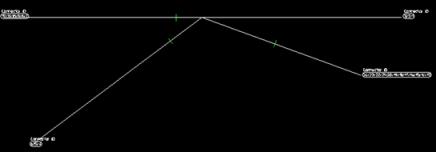
Creo Elements/Direct Cabling creates a wire list and a Bill of Materials (BOM) and places them on the drawing.