Creating Detail Drawings
You can create detail drawings in your drawing. Each detail is a magnified copy of an area of the active part.
 Dimensions are not affected by the magnifying factor; thus the dimensions on your detail will agree with the part from which it was taken. Dimensions are not affected by the magnifying factor; thus the dimensions on your detail will agree with the part from which it was taken. |
Following figure shows how to create a detail drawing within your main drawing:
Creating a Detail Part
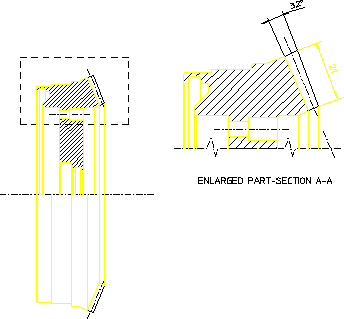
Finish drawing the part to be detailed and make it the active part.
This technique of finishing the part before creating a detail differs from traditional drafting methods. However, using View functions, you can just as easily draw intricate features on the main drawing as on the detail drawing.
The Detail option is used to produce a magnified copy for dimensioning purposes.
To produce a detail drawing:
1. Click Create in Parts.
2. Click Detail in Create.
3. Enter the required magnifying factor for the detail.
4. Box the area of the active part from which you wish to form the detail. The edges of the box will determine where elements are cut, so specify the corners carefully (in the detail drawing, the dashed lines indicate where the box was placed).
5. Specify a reference point for the copy operation, then specify the desired location for the reference point.
ME10 now creates the detail part.