Setting Minimum Space
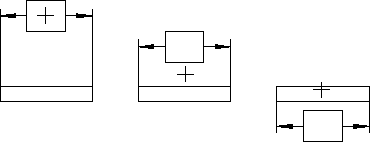
This section shows how to avoid crowding dimensions by setting a minimum distance (or space) between the geometry feature you are dimensioning and the dimension line. If you try to locate the dimension trace closer than the minimum distance, the trace will skip to the opposite side of the geometry feature. The Creo Elements/Direct Drafting default for this distance is 0 mm.
To set the minimum space:
1. Pick SET LINES from the DIMENSION 3 screen menu.
2. Pick MIN SPACE.
3. Enter a minimum distance value.
The following example shows how to set a typical minimum distance (10 mm) between the dimension line and geometry feature:
1. Pick SET LINES from the DIMENSION 3 screen menu.
2. Pick MIN SPACE.
3. Enter a value of 10.
4. Complete or start a dimensioning command.
If you try to locate the dimension text closer than the minimum distance (10mm), the dimension skips to the opposite side of the geometry feature.
Locating a Dimension -- Closer Than the Minimum Distance