Symbol Examples
Drawing symbols is a simple task and can quickly be mastered by following specified steps.
Before starting, set the text size to 5 mm, the text adjust to 1 (refer to Entering Text for details).
Single Line Symbol Group
Symbol Group — Example 1

To add symbol text:
1. Pick Normal in TYPE.
2. Pick Total in RUNOUT.
3. Pick the (S) in MODIFIERS.
4. Pick APPEND TXT and enter '0.02'
5. Pick '|'
6. Pick APPEND TXT and enter 'A'
7. Pick '|'
8. Pick APPEND TXT and enter '5R'
9. Pick End Frame
10. Indicate a point on the drawing.
Example 2: Multiline Symbol Group
Symbol Group — Example 2
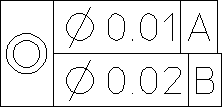
To add symbol text:
1. Pick Composite in TYPE.
2. Pick Concentric in LOCATION.
3. Pick the ø icon in MODIFIERS.
4. Pick APPEND TXT and enter '0.01'
5. Pick '|'
6. Pick APPEND TXT and enter 'A'
7. Pick New Line
8. Pick the ø icon in MODIFIERS
9. Pick APPEND TXT and enter '0.02'
10. Pick '|'
11. Pick APPEND TXT and enter 'B'
12. Pick End Frame
13. Indicate a point on the drawing.
Example 3: Editing a Symbol Group
Symbol groups can be edited using the EDIT CONV command. This command converts the symbol into a readable text-string and displays it in normal screen-mode. This text-string also contains control characters (\030) that should not be edited. If they are modified, the conversion link back to the symbols font is lost and the symbol appears as normal text.
To edit the symbol text:
1. Pick the EDIT CONV
2. Pick the symbol text
Creo Elements/Direct Drafting displays the text in screen mode, similar to the following:
\030\151e0.01|A}
\030fe0.02|B}
\030fe0.02|B}
3. Edit the text and press [Ctrl] [D] to save your changes.
 | Use the fontlist for special characters created by FONT EDITOR. |