Editing a Font
To edit a font:
1. Pick FONT EDIT in TEXT 2
Creo Elements/Direct Drafting displays a warning telling you to save the current drawing. Pick OK to clear the screen.
2. Pick MOD FONT in FONT EDITOR
Creo Elements/Direct Drafting displays a list of currently available fonts.
3. Select the font to modify, for example, hp_symbols2
Creo Elements/Direct Drafting displays the font name adjacent to the FONT NAME field.
4. Pick SHOW FONT to display the font table.
5. Pick EDIT CHAR.
6. Scroll down the CURR CHAR table and select 174. (You can also enter the character number on the command line.)
Creo Elements/Direct Drafting displays the character and a yellow character-frame.
7. Delete existing geometry.
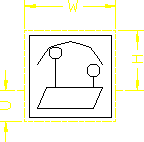
8. Using the options Line, Rectangle, Polygon, Circle, Arc, or Point in DRAW CHAR, create the character shown. (These options work in a similar way as in the CREATE menu.) Note that the maximum number of unconcatenated elements in a character is 84.
Figura 182. Character Frame
9. Pick UPDT CHAR
10. Enter the character number (you can either keep this number or assign a new number)
11. Enter width of new character (you can either keep the current width or specify a new width)
12. Pick STORE FONT and press [Enter] to accept the current font name
13. Enter a filename.