Assign Parameter Names
First, assign parameter names to the appropriate dimensional constraints.
1. If you haven't already, select NoKeep, and END to replace your original part with the variation you created in the last step.
2. Select ASSIGN and Dimension in MENU 2.
3. Pick the dimension text that gives the length of the triangle (55).
Type in: 'Base' [Enter]
4. Pick the dimension text that gives the height of the triangle (55).
Type in: 'Height' [Enter]
5. Pick the "12.37" dimension on the top hole.
Type in: 'Dim1' [Enter]
6. Pick the "29.69" dimension on the top hole.
Type in: 'Dim2' [Enter]
7. Pick the "10.01" dimension on the leftmost hole.
Type in: 'Dim3' [Enter]
8. Pick the "49.21" dimension on the rightmost hole.
Type in: 'Dim4' [Enter]
9. Press END. The dimension text should now look like following figure.
Parameter Names Assigned
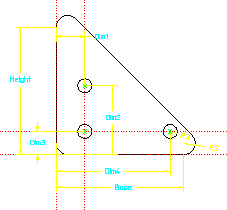
With the names assigned, you now define the relationships among the parameters in the parameter definition table. For this example, we'll set up the parameters so that all parameterized dimensions are functions of the Base parameter. The parameter definition table should resemble Figure 34. Parameter Values Defined when you are finished.