Manual Hatching
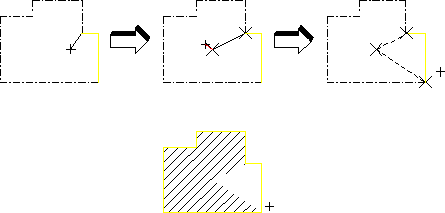
Manual hatching is used to hatch any area not fully enclosed by drawing lines.
To manually hatch a drawing area:
1. Click > > .
2. Click the start point on the existing outer contour of the area to be hatched. See Automatic Splitting for further contour creation options.
3. Continue by clicking successive points around the outer contour.
4. Click the start point again to close the contour.
When you have closed the contour, use the same method to indicate any inner holes that are not to be hatched.
5. Click End and Drafting will hatch the area.
To abort the command click Cancel. Use Undo to undo erroneous points.
If a side consists of a complete drawing line, simply indicate a mid-point on the line using the element (ELEM) catching mode. Drafting will accept the line. If you wish to identify only part of a line, mark the desired end point with a construction line, use the intersection (INTERSECTION) catching mode, and indicate the desired end point. Drafting will then accept only part of the line.
A series of connected drawing lines can be indicated by the end of one line and the mid-point of the last line. Drafting will not accept a series of successive lines if there is a branch at one of the vertices.
Indicating the Area for Hatch
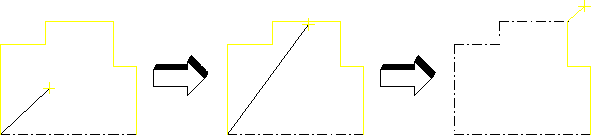
Not all the sides have to be drawing lines. An imaginary line can be used to separate free space or existing points. See following figure.
Hatching — Leaving an Unhatched Area