Datum Dimension Examples
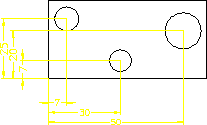
Following figure shows a rectangular plate dimensioned using Datum Long and the Parallel to orientation option.
Rectangular Plate -- Dimensioned with Datum Long
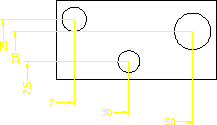
Following figure shows a rectangular plate dimensioned using Datum Short with Parallel and Vertical orientation options.
Rectangular Plate -- Dimensioned with Datum Short
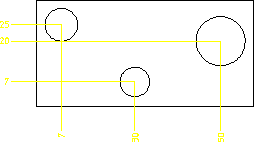
The following example shows how to use Coordinate to dimension a simple rectangular plate with three holes. Assume that the common datum point is the lower left hand corner of the plate.
Following figure shows the rectangular plate:
Rectangular Plate -- Dimensioned with Coordinate
To add the dimensions measured along the vertical (from datum point):
1. Make sure that the Vertex option is switched on in the Show menu.
2. Click Linear in Dimensions.
3. Click Coordinate in Linear.
4. Click Vertical in Coordinate.
5. Click the lower left hand corner of the plate.
6. Click the center of one of the circles.
7. Click the position for the dimension text.
8. Repeat step 6 for the other two circles.
To add the dimensions measured along the horizontal (from datum point):
9. Click Coordinate in Linear.
10. Click Horizontal in Coordinate.
11. Click the lower left hand corner of the plate.
12. Click the center of one of the circles.
13. Click the position for the dimension text.
14. Repeat step 12 for the other two circles.
 | The dimension text may be preceded by a leading zero. For details see Coordinate Dimension Leading zero in this chapter. |