The Magnifying Glass Effect
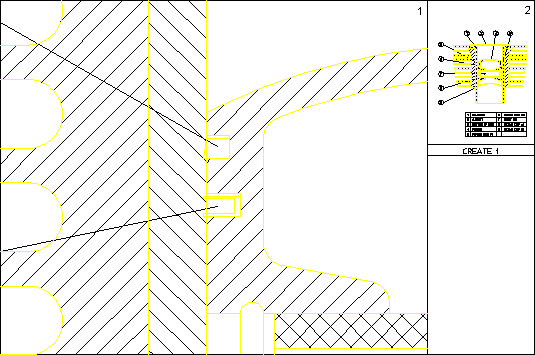
The following example illustrates the use of dynamic center. Details on a zoomed-in drawing in viewport 1 are viewed, and viewport 2 is used as a positional reference displaying the entire drawing.
The view in viewport 1 can be imagined as the view you would see if you were examining your drawing with a magnifying glass. To achieve this effect you must zoom in to the drawing displayed in viewport 1 until you can see the required level of detail.
• Viewport 1 — contains a magnified view showing the required level of detail.
• Viewport 2 — contains the entire drawing and is used as a positional reference for the magnifying glass.
First load a drawing:
1. Press FILE.
2. Pick Drw/Part in LOAD and load your drawing.
Zoom in to the required level.
3. Press CURRENT in VIEWPORT.
4. Identify viewport 1.
5. Press WINDOW.
6. Pick On in Displ List.
7. Pick Zoom in WINDOW.
8. Pick the required window size or enter the zoom factor.
To display the entire drawing in the reference viewport, fit the view in viewport 2.
9. Press CURRENT in VIEWPORT.
10. Identify viewport 2.
11. Pick Fit in WINDOW.
Make viewport 1 active.
12. Press CURRENT in VIEWPORT.
13. Identify viewport 1.
14. Pick Dyna in Center.
15. Examine the zoomed drawing in viewport 1 while moving the cursor (as a positional reference) in viewport 2. See the following figures.
Using Viewport 2 as a Reference

Viewing Piston Assembly Detail in Viewport 1