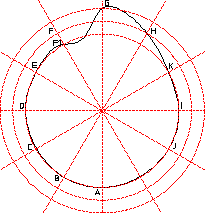
Example — Cam Profile
This example describes how to create a cam profile and then modify it.
Construct the following geometry (see the following figure):
• Horizontal and vertical lines at 0 0
• Circles at 35 40 45
• Lines at angles 30 60 120 150
Cam Profile - 1
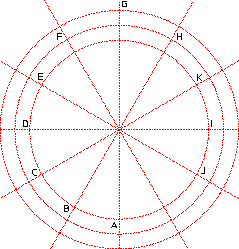
To create the initial profile:
1. Press CREATE.
2. Pick SPLINE.
3. Pick INTPOL SPL.
4. Pick Closed.
5. Pick points A, B, ... J.
6. Press END.
Cam Profile - 2
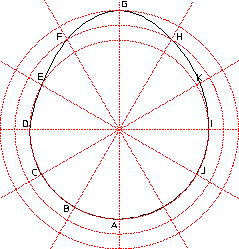
You now want to add an interpolation point at K:
1. Pick ADD I PNT
2. Pick the spline.
3. Pick a point on the spline that is close to the point K.
4. Pick the intersection point at K.
Cam Profile - 3
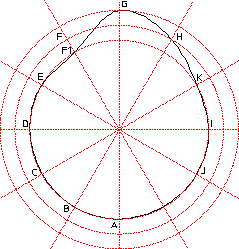
To delete and interpolation point:
1. Pick DEL I PNT
2. Pick the spline.
3. Pick point C.
The system deletes the point.
To change the position of an interpolation point:
1. Pick CHG I PNT.
2. Pick Position.
3. Pick the spline.
4. Pick point F.
5. Move the point and pick point F1.
To change the angle at point F1:
1. Pick CHG I PNT.
2. Pick Tangent.
3. Pick the spline.
4. Pick point F1.
The system displays an arrow indicating the slope direction. You can now either pick a point to indicate the direction or enter a value. (This example uses an angle of 10°.)
5. Enter 10
Cam Profile - Final Shape