Smashing Subparts
When you smash a subpart, the elements that comprise the identified part will be merged into the active part and the subpart will no longer exist.
To merge a subpart into the active part:
1. Make sure that the correct part is active.
2. Click Smash in Parts.
3. Click the required Smash option:
|
Move
|
The subpart is merged with the active part.
|
|
Move KeepData
|
The subpart is merged with the active part, and it is drawn to the scale of the top part (scaling is maintained -- drawing A).
|
|
Move Keep Display
|
The subpart is merged with the active part, and it is brought into the top part as it is displayed on the screen (scaling may be lost) -- drawing B.
|
4. Select the part to be smashed or enter the part name. The part to be smashed must belong to the active part.
ME10 will now transfer the elements of the identified part to the active part and delete the subpart.
Refer to the following figure. You want to make a single part drawing (WRIST UNIT) from the assembly drawing WRIST ASSEMBLY.
Smashing Parts
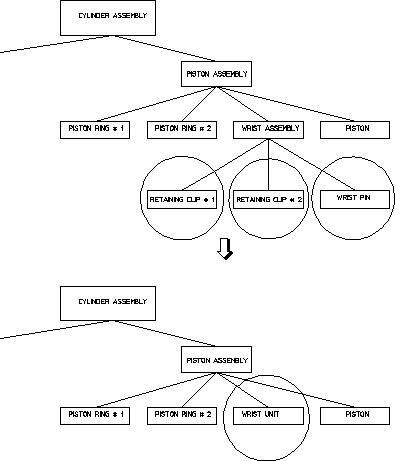
To create WRIST UNIT from WRIST ASSEMBLY:
1. Click Edit in Parts.
2. Click Part in Edit.
3. Click WRIST ASSEMBLY.
ME10 makes WRIST ASSEMBLY the active part.
4. Click Smash in Parts.
5. Click RETAINING CLIP # 1, RETAINING CLIP # 2 and WRIST PIN.
ME10 transfers all drawing elements to the active part and then deletes the subparts.
6. In the Part Browser, press the right mouse button, select Rename and rename the part to WRIST UNIT.
Effects of Smashing Scaled Parts

 |
• If the part to be selected is the master element of a group, the group is ungrouped before smashing.
• If the part to be selected is a normal element of a group, the part is removed from the group before smashing.
|