Dimension Text Underlining
Creo Elements/Direct Drafting provides the possibility to underline dimension text. This is particularly useful when you want to flag a dimension that has been manually changed (or edited). This underlining feature is a requirement of DIN dimensioning standards. The default setting depends on the selected dimension standard:
|
DIN Standard
|
Default is on.
|
|
ANSI, ISO, JIS, or COMPANY Standard
|
Default is off.
|
If the selected dimension standard is DIN, dimension text that is edited is automatically underlined. Otherwise, edited dimension text is not underlined but can be underlined selectively. Dimension underlines have the following properties:
• The length is the same length as the dimension text.
• Prefixes, postfixes, and tolerances are not underlined.
• The color is the same as dimension lines.
• The space between the dimension text and underline is fixed.
• The pensize is the same as that of the dimension lines.
To underline a dimension:
1. Click Modify in Dimension.
2. Click Edit Dim Text in Modify.
3. Click the dimension to be underlined.
4. Press [Enter] to accept the current value. Optionally, you can edit this value.
Creo Elements/Direct Drafting displays the edited dimension value with an underline.
Dimension Underlining
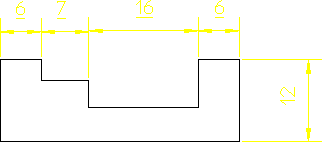
To remove an underline:
1. Click Modify in Dimension.
2. Click Cancel Edit in Modify.
3. Click the underlined dimension you want to reset.
Creo Elements/Direct Drafting displays the edited dimension value without an underline.