Creating Symmetric Elements
Use the SymLine command to create elements that are:
• Symmetric with existing elements
• Associated (or anchored) to the defining elements.
When you modify the defining elements, the associated element is modified accordingly.
To draw an associated element:
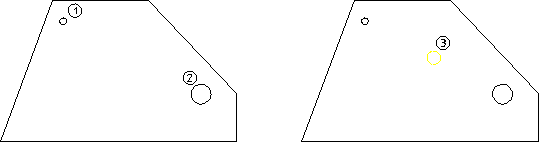
1. Draw a polygon similar to that shown in Figure 40. Associated Symmetric Elements.
2. Create circle 1 having diameter 1 mm.
3. Create circle 2 having diameter 3 mm.
4. Click SymLine in the Geometry menu.
5. Click circle at point 1.
6. Click circle at point 2.
Creo Elements/Direct Drafting draws the associated circle (point 3) that is:
• Midway between circles 1 and 2.
• 2 mm in diameter (half the sum of the defining diameters).
Associated Symmetric Elements
Click Change in the SymLine menu to change the position of the symmetry line.
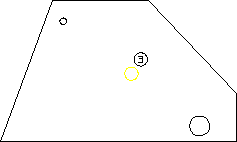
Now try moving the circle at position 2 and notice how the associated element also moves.
Effect of Moving the Defining Circle
Following figure shows another example of where to use the SymLine command.
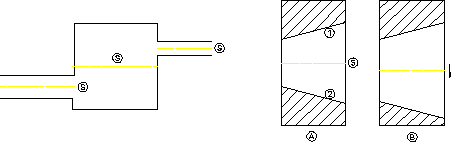
Finding Lines of Symmetry