Show Gaps
Creo Elements/Direct Drafting allows you to box "non-trivial" gaps between two or more elements using  Show Gaps.
Show Gaps.To mark "non-trivial" gaps:
1. Click Modify and then, in the Draw group, click Show Gaps.
Show Gaps.2. Type a box color for "trivial" gaps in the user input line and press ENTER.
3. Type a box color for "non-trivial" gaps in the user input line and press ENTER.
4. Draw a selection box around the elements between which there are or may be gaps.
5. Type a distance tolerance (current length units) in the use input line and press ENTER.
 |
This distance tolerance needs to be a "realistic" (small) value in order to prevent the elimination of required spacing between elements. If the distance tolerance is too big, a very large number of gaps may be shown. If all gaps are shown in the drawing, your drawing may be cluttered with color rectangles indicating "non-trivial" gaps.
|
The number of "trivial" and "non-trivial" gaps found in your selection is indicated in the prompt line.
6. Type the number of "non-trivial" gaps in the user input line and press ENTER.
Optionally, by incrementing this number, you can display one "non-trivial" gaps after the other for further examination. For example, you may want to type 1 to box only a single "non-trivial" gap. Then type 2 to box the next one, and so forth.
Optionally, type the total number of "non-trivial" gaps to box all of these gaps at the same time.
7. Optionally, close the "trivial" gaps indicated by Show Gaps by clicking  Confirm.
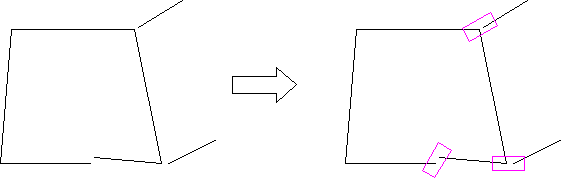
Show Gaps by clicking Confirm.The following figure shows an example of a geometry that includes three "non-trivial" gaps.
Showing Non-Trivial Gaps
 |
To clean up most common problems in a part, click the Clean buttons in the following sequence:
|


