Solve for Variations
With the parameters defined, you can now Solve for variations:
• Click No Keep in Solve. All the parameterized dimensions are now adjusted according to the expressions you entered in the parameter definition table. The height is now .75 of the base, the "Dim1" and "Dim3" dimensions are equal, and both are .2 of the base dimension.
261. Variation of Demopart01
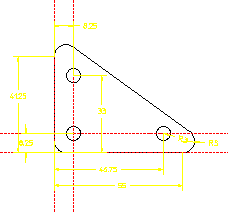
• Since all the linear dimensions are related to the base dimension, you only need to modify this dimension to make the entire part adjust. Try assigning several different values to the base dimension, solving after each change. You can change this dimension one of three ways:
a. In Generate Constraints, click the Assign radio button, select Dimension from the Type list, click Apply, click the dimension label, and enter the new value.
b. Display the Current Constraints dialog box, select the dimension to be changed, enter a new value and click Apply.
c. In the Current Constraints dialog box, click Advanced to display the parameter table. Then click on the value to be changed in the New Value or Expression column and enter the new value.