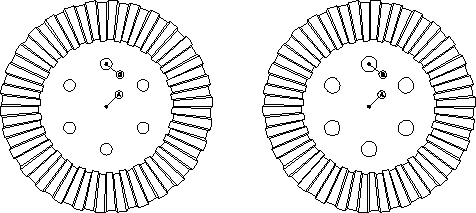
Modify the design
The final step is to modify the design by changing parametric values.
1. Click Parametric and then, in the Modify group, click  Dimension.
Dimension.2. Click  Immediate.
Immediate.3. Click R4 (green dimension).
4. Type 3 in the user input line and press ENTER.
Creo Elements/Direct Drafting changes the radii of all six circles — the yellow (annotation) dimensions are also updated.
5. In the Utilities group, click  Delete and delete the six yellow dimensions.
Delete and delete the six yellow dimensions.6. Click Parametric and then, in the Create group, click  Constraints.
Constraints.The Generate Constraints dialog box opens.
7. In the Action area, click Show.
8. In the Type box, select Size.
9. Click Apply.
The Parametric module has used the actions performed during the creation of the design to generate constraints for dynamic modification of the design.
10. In the Generate Constraints dialog box, click Assign in the Action area.
11. In the Type box, select Size.
12. Click Apply.
13. Click the original circle at G.
14. Type 'Borehole_radius' in the user input line and press ENTER.
15. Click  OK.
OK.
OK.16. Click Parametric and then, in the Show group, click Current.
Current.The Current Constraints dialog box opens.
17. Click Advanced.
The Advanced dialog box opens.
18. Click the value 3 in the New Value or Expression column.
19. Edit the value to 4 and click Apply.
20. Click Parametric and then, in the Solve group, click  Preview.
Preview.21. Click Parametric and then, in the Solve group, click  Keep.
Keep.
Keep.22. Click the design.
23. Move the copy of the design to another location (you may need to use  Pan in the Viewing group on the View tab).
Pan in the Viewing group on the View tab).24. Click the destination point for the copy.
25. Click OK.
OK.26. Click View and then, in the Viewing group, click  Fit.
Fit.
Fit.Note the smooth transition from simple design creation using the green driving dimensions to parametric design.