Chain Dimensioning
This section shows how to dimension groups of linear geometry features.
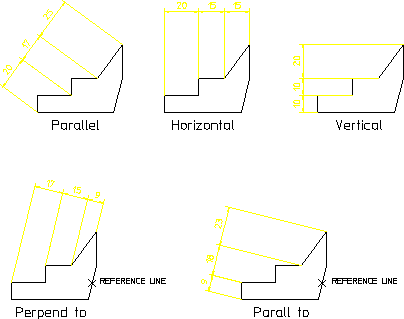
The following options are available to define the orientation of chain dimensions relative to geometry features:
|
Parallel
|
Parallel to a line drawn between two dimension points.
|
|
Horizontal
|
In a horizontal plane.
|
|
Vertical
|
In a vertical plane.
|
|
Perpend to
|
Perpendicular to a reference line on your drawing.
|
|
Parallel to
|
Parallel to a reference line on your drawing.
|
Creo Elements/Direct Drafting draws the chain dimensions parallel to the first dimension and chained to the same axis. Locate your first chain dimension so that subsequent chain dimensions do not overwrite the drawing or dimensions. You can correct mistakes by repeatedly clicking Undo, which removes preceding dimensions. You can then click the correct points.
To draw chained dimensions:
1. Click Linear in Dimensions.
2. Click Chain in Linear.
3. Click an orientation option (the default is Parallel).
4. Complete the selection sequence required by the option.
All options allow you apply dimensioning to a single linear drawing element or to a group of elements. Depending on your selection, you can:
◦ Click any two dimension points. The line between the two points is dimensioned.
◦ Click a single linear drawing element. The starting point of the selected element becomes the first dimension point. Click a second dimension point on this or any other linear drawing element to complete the dimension.
◦ Select multiple linear drawing elements with Select or by enclosing them in a box. The end points of each selected element become dimension points, and each element is dimensioned.
5. If you switched Automatic dimension placement off in Options under Dimension Settings, position the dimensions on your drawing. A dimension trace appears when you select elements. Move the trace around your drawing until the dimension text is in the desired location. Click the desired text location and Creo Elements/Direct Drafting draws the dimension(s). When multiple elements are selected, they become the first members of the chain and the trace shows the proposed dimensions for all of them at the same time.
If you switched Automatic dimension placement on in Options under Dimension Settings, Creo Elements/Direct Drafting automatically positions the dimensions. Automatic dimension placement only applies when you have selected multiple elements for dimensioning.
6. To continue chain dimensioning, click the next point in the dimension sequence.
7. Click End to end this command.
Following figure shows examples of chain dimensioning using each option.
Chain Dimensioning