Editing a Font
To edit a font:
1. Click Miscellaneous and then, in the Font Editor group, click  Font.
Font.
Font.The Select Font dialog box opens.
2. In the List box, select a font and click Edit.
Details of the selected font appear in the viewport.
3. Click Miscellaneous and then, in the Font Editor group, click  Show Font.
Show Font.All the characters of the selected font are displayed in the Creo Elements/Direct Drafting drawing area.
4. Click Drafting and then, in the Font Editor group, click the arrow next to  Character.
Character.5. Click Edit.
Edit.6. Type the character number (for example 174) which you want to edit in the user input line and press ENTER.
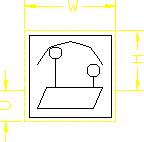
Creo Elements/Direct Drafting displays the character and a yellow character frame.
Figure 157. Character Frame
 | • If you use this method to add special characters to the hp_symbols or hp_symbols2 font, be sure to edit an empty character (indicated by a blank square). • These special characters are available for use in text, dimensions, and symbols. |
7. Modify or delete the geometry of the character.
8. Click Miscellaneous and then, in the Font Editor group, click the arrow next to  Draw.
Draw.
Draw.9. Use the Draw buttons ( Line,
Line,  Rectangle,
  Polygon,
  Circle,
  Arc, or
  Point) to create a new character.
Draw buttons ( Line, Rectangle, Polygon, Circle, Arc, or Point) to create a new character.| | The maximum number of unconcatenated elements in a character is 84. |
10. Click Miscellaneous and then, in the Font Editor group, click the arrow next to Character.
Character.11. Click  Update.
Update.12. Type the character number in the user input line and press ENTER.
You can retain the same character number or assign a new character number.
You can repeat the procedure for other characters, if required.
| | If you use this method to create additional special characters in the hp_symbols or hp_symbols2 font, be sure to save the edited version under a unique name in a separate directory so that it can be reused following a Creo Elements/Direct Drafting update. |