Gaps
Gaps uses the Creo Elements/Direct Drafting TRIM EXTND functionality to close "trivial" gaps between two or more elements, even between circular and linear elements.
• "Trivial" gaps are small gaps that can be closed automatically without any major impact on the drawing. These can be closed automatically.
• "Non-trivial" gaps cannot be eliminated automatically because their elimination may lead to unpredictable results. Therefore, "non-trivial" gaps cannot be closed automatically. "Non-trivial" gaps are typically characterized by distances and/or complexities greater than those found in "trivial" gaps.
To automatically close "trivial" gaps:
1. Press Gaps in the MODIFY 1 menu.
2. Draw a selection box around the elements between which there are gaps that you want to close. Note that, if you use the Global selection mode, you may unintentionally close "correct" gaps between elements.
3. Enter a distance tolerance (in current length units). Note that this distance tolerance needs to be a "realistic" (small) value in order to prevent the elimination of required spacing between elements. If the distance tolerance is too big, a very large number of gaps may be shown. If all gaps are shown in the drawing, your drawing may be cluttered with color rectangles indicating "non-trivial" gaps.
The number of "trivial" and "non-trivial" gaps found in your selection is indicated in the prompt line. However, note that "non-trivial" gaps are not indicated in the drawing.
4. Be sure to check the "trivial gaps" preview for plausibility.
5. Press CONFIRM to close any "trivial" gap(s).
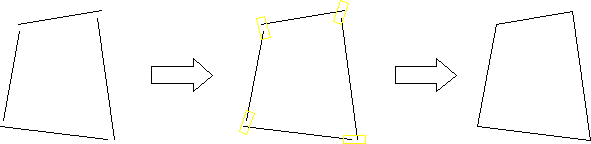
The following figure shows an example of a set of elements separated by "trivial" gaps. These gaps are highlighted in the drawing and are then closed. Note that the gap sizes are exaggerated for visual clarity.
Closing Trivial Gaps