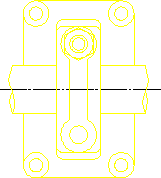
Drawing Using Layers
The layers commands allow you to split up your drawing into a number of layers. Thus you can place individual elements in a particular layer, or in a number of layers.
The advantage of working this way is mainly in visualization. By switching layers on and off you can simplify what you see on the screen.
Suppose you wish to create an assembly drawing of a cap bearing consisting of four components. Each component was stored as a drawing, and you must load each one to create a four part drawing.
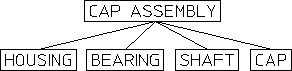
The following figure shows the parts structure.
Cap Bearing Parts Structure
Irrespective of the parts structure, you want to be able to see the assembly in three different ways:
• Each of the components individually.
• With the cap removed.
• Fully assembled.
To do this we can use the three layer commands and place the various elements into layers; some elements would be contained in more than one layer.
Finally, using the LAYER option in the SHOW block you can switch the various layers on and off to produce the required views. The layers would be as follows:
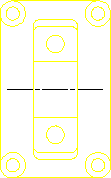
LAYER: 1
Contains all the HOUSING elements.
Layer 1 — Housing Elements
LAYER: 2
Contains all the BEARING elements.
Layer 2 — Bearing Elements
LAYER: 3
Contains all the SHAFT elements.
Layer 3 — Shaft Elements
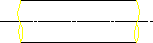
LAYER: 4
Contains all the CAP elements.
Layer 4 — CAP Elements

LAYER: 5
Contains most of the HOUSING elements, all the BEARING elements and some of the SHAFT elements.
Layer 5 — Housing, Bearing and Shaft Elements
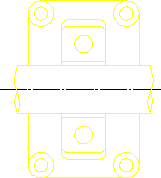
LAYER: 6
Contains some of the HOUSING and SHAFT elements, plus all the CAP ones.
Layer 6 -- Housing, Shaft and CAP Elements