Troubleshooting
To fix a Microsoft Word import fails with an error message, see How to fix if a Word import fails with an error message?
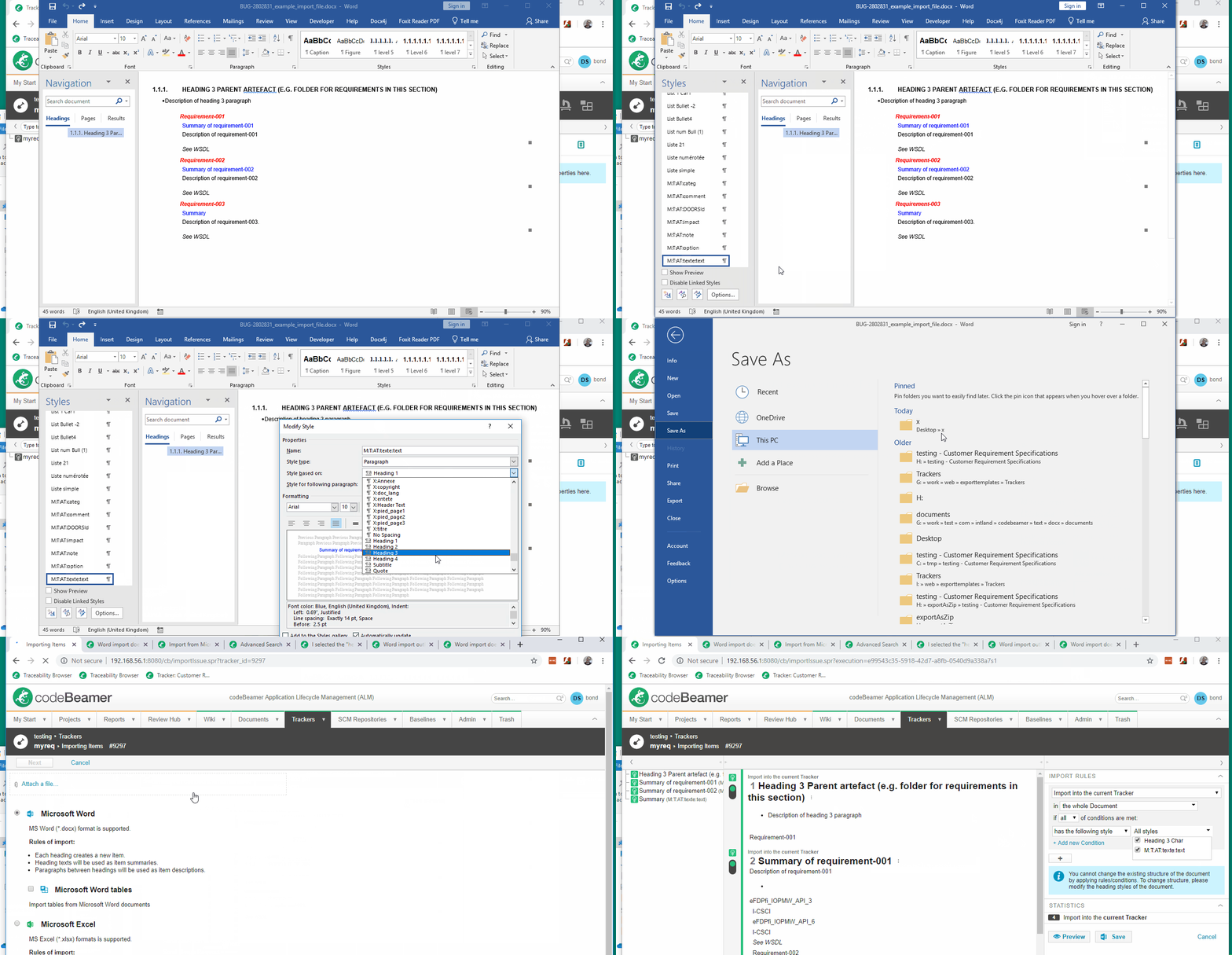
As described in the topic Import from Microsoft Word, the Heading 1 and Heading 2 styles in the Word document are used to split the document into parts. The paragraph with a heading style is used as name of the new work items, and any paragraphs between the heading styles are imported as the description of the work items.
The custom Word styles that are based on the Heading X style in Word as Heading styles are imported as the name of the work item.
If you want to use a custom Word style as the name of a work item but it does not appear in the Word import interface, modify the style in Word to base it on a Heading X style. This ensures that the importer recognizes it as a heading and includes it correctly in the work item structure.
The following video illustrates how to do that:
If the exported Word document shows inconsistent line spacing when you press ENTER or SHIFT+ENTER, as shown in the following image:

Ensure that Word uses the default Normal template with no styling customizations. To reset the Word Normal template to its default state follow the steps given below:
1. Close all Word documents and all applications that are using MS Word.
2. Open File Explorer on your system.
3. Navigate to C:\Users\<user name>\AppData\Roaming\Microsoft\Templates
4. Locate the Normal.dotm file.
5. Rename it to Normal_backup.dotm
6. Launch MS Word. A default and non-customized version of Normal.dotm is recreated automatically.
Word applies the same text style everywhere in the document. To ensure consistency, PTC recommends selecting the Normal style.
For the detailed steps to apply a text style, see the Apply styles Microsoft guide. Refer to the PTC Support article www.ptc.com/en/support/article/CS419606 for detailed information about this topic.