Configuring Reference Fields for Trackers and Work/Config Items
Reference fields in trackers can be configured on the Fields tab on the tracker configuration page. To edit the configuration of a specific field, click the Label. This opens the field edit window.
To define the reference type of a field, select the required item type in the datasource list in the field edit window.
Trackers as Datasource
To define a reference field referring to trackers, select Trackers in the datasource list in the field edit window.
Referred trackers can be further configured, for example, by project, type, and user permission.
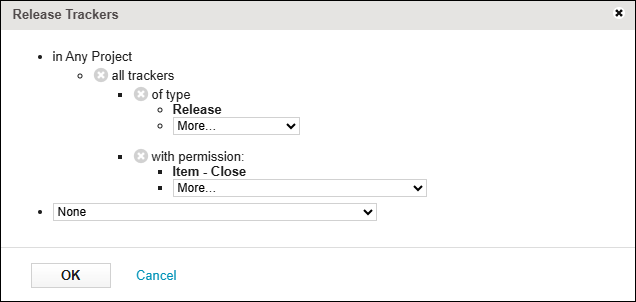
• Any Project configuration: Select the in Any Project option to refer to trackers in any project available in the current stream. Configure further to refer to trackers of specific types or with specific user permissions.
For example, using the in Any Project option, the reference field can refer to trackers in any project in the current stream, with the tracker type Release, where the user has the Item – Close permission.
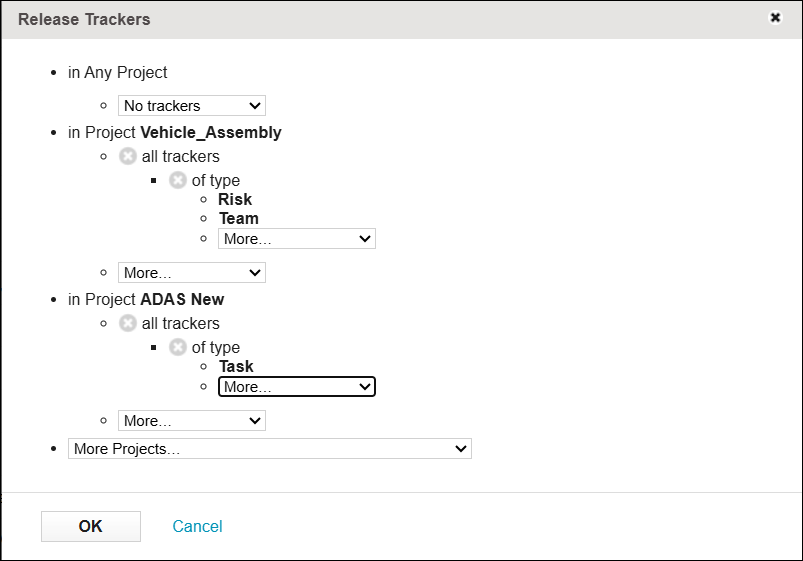
• Project-specific configuration: Select one or more specific projects using the in Project option to refer only to trackers in the selected projects. Configure further to refer to trackers of specific types or with specific user permissions.
For example, using the project specific in Project option, the reference field can refer to trackers in the project Vehicle_Assembly and the project ADAS New.
◦ In the project Vehicle_Assembly, the reference field refers to trackers of types Risk and Team.
◦ In the project ADAS New, the reference field refers to trackers of type Task.
Work/Config Items as Datasource
To define a reference field referring to items, select Work/Config items in the datasource list in the field edit window.
Referred items can be further configured, for example by project, status, type, and user permission.
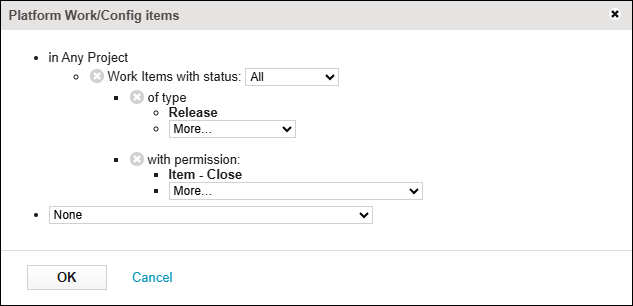
• Any Project configuration: Select the in Any Project option to refer to items in any project available in the current stream. Configure further to refer to items of specific types, in specific statuses, with specific user permissions, or available in specific views or filters.
For example, using the in Any Project option, the reference field can refer to items in any project in the current stream, in all possible statuses, with the item type Release, where the user has the Item – Close permission.
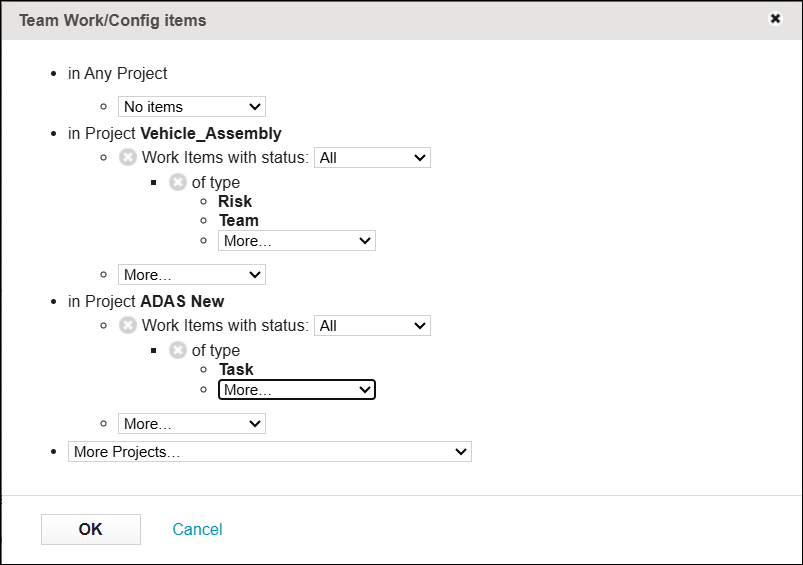
• Project-specific configuration: Select one or more specific projects to refer only to items in the selected projects. Configure further to refer to items of specific types, in specific statuses, with specific user permissions, or available in specific views or filters.
For example, using project-specific configuration, the reference field can refer to items in the project Vehicle_Assembly and the project ADAS New.
◦ In the project Vehicle_Assembly, the reference field refers to items in all statuses, of types Risk and Team.
◦ In the project ADAS New, the reference field refers to items in all statuses, of type Task.
Statuses
The status list contains a set of predefined statuses and includes custom views.
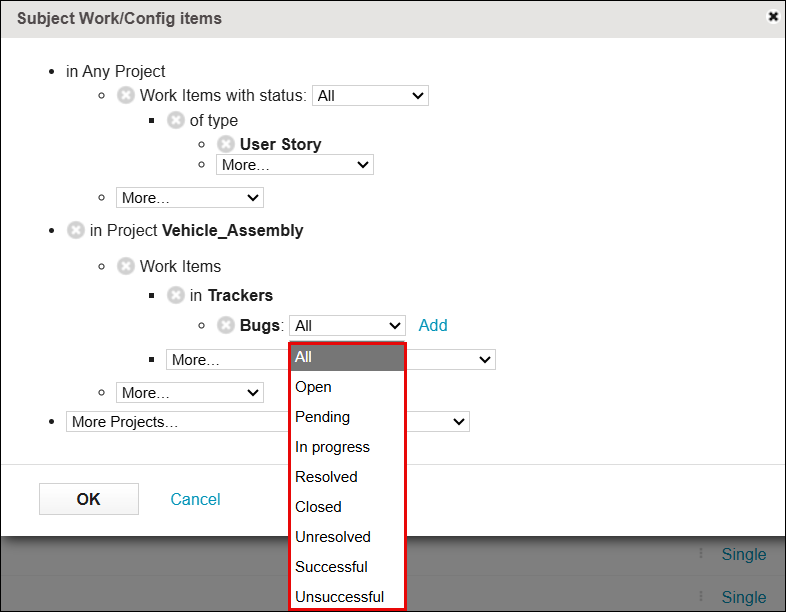
The built-in options are based on the Meaning values of the Status and Resolution fields:
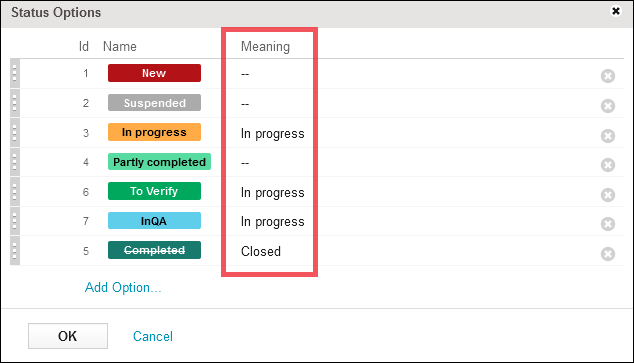
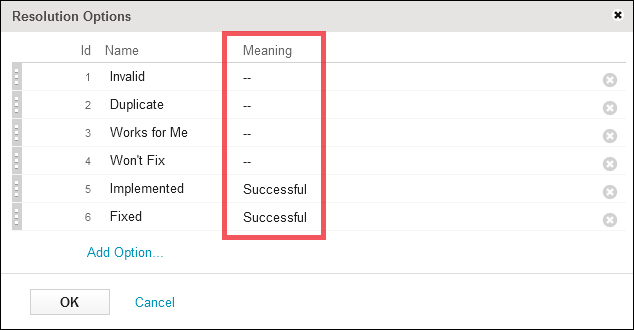
Definitions of predefined filters are summarized in the following table:
|
Filter Name
|
Field Meaning Values
|
|---|---|
|
Any status
|
No filtering at all
|
|
Open
|
Status not Closed
|
|
Pending
|
Status is neither of Closed, Resolved, In Progress
|
|
In Progress
|
Status is In Progress
|
|
Resolved
|
Status is Resolved
|
|
Closed
|
Status is Closed
|
|
Unresolved
|
Status neither Closed nor Resolved
|
|
Successful
|
Status is Resolved, and resolution is Successful
|
|
Unsuccessful
|
Status is Resolved, and resolution is not Successful
|
 |
Besides using the described filters, you can filter out all the folder types, information types and deleted items as well.
|
Propagation Configuration in Work/Config Items
If the datasource of a reference field is set to Work/Config items, propagation configuration settings are available.

The following options are available:
• Propagate suspects: Sets whether the reference propagates suspicion. If this option is selected, the reference is marked as suspected if the referred item is modified, and the changes in the referred item can be applied to the work item.
• Reverse direction: Sets the control of suspicion to reversed. If this option is selected, the reference is marked as suspected if the original work item, which contains the reference, is modified.
• Bi-directional: Sets the control of suspicion to bi-directional. If this option is selected, the reference is marked as suspected if either the original work item or the referred item is modified.
|
|
Reverse direction and Bi-directional cannot be selected at the same time. If one of these checkboxes is selected, the other checkbox is cleared.
Reverse direction and Bi-directional are available only if Propagate suspects is selected.
|
|
|
When configuring a reference field of a tracker, propagation options are shown. By default, propagation options during tracker reference configuration are read-only and cannot be changed, so that they always show the configuration set at the tracker level, as described in this section. To override the configuration set at the tracker level, the suspect propagation override feature must be enabled. For more information, see Tracker Item Reference Settings and the "features" application configuration.
The suspect propagation override feature is intended to be removed in a future version of Codebeamer, so that propagation options set at the tracker level can no longer be overriden at the reference level.
|
Autocomplete with Exact ID Only in Work/Config Items
If Work/Config items is selected in the datasource list in the field edit window, search autocomplete behavior can be further configured using the search ID only option. This option is only visible for Work/Config items in existing trackers. It is also visible when creating a new choice field, but it is only enabled for Work/Config items.
This option is recommended to increase search performance. A field can potentially refer to a large number of items, especially when the in Any Project option is used. In these cases, searching in item summaries can cause poor performance.

If search ID only is selected, the search autocomplete feature is only enabled for exact IDs. That is, when editing the field, searched text does not autocomplete on item titles or names, only IDs. For example, if search ID only is selected, searching for the exact ID 13581 shows autocomplete results, but searching for the name customer2project1 does not.
Autocomplete is enabled while searching for a specific ID with search ID only selected:

Autocomplete is not enabled while searching for an item name with search ID only selected:

When the search ID only option is selected, a badge is shown in the search field as a reminder.
Limitations for the Status or Resolution Filter in Reference Fields with Work/config items Datasource
To allow a faster search and selection in a reference field with Work/config items datasource, you can configure the field to display only the items that match a specific status or resolution value for a tracker or a group of work item types. Note that Codebeamer does not consider the filter set for the status or resolution value in certain scenarios, such as:
• External integrations: When the reference field is populated by external integrations, such as MS Excel import.
◦ For example, the Excel round-trip and Excel import features can populate a work or configuration reference field with an item in closed status, even if the reference filter on the Codebeamer user interface allows only the selection of items in open status.
• Status changes: When the item selected in the reference field has changed its status after being set.
Searching by Reference Fields
Codebeamer supports advanced filtering based on reference fields. Users can:
• Filter items with upstream/downstream references.
• Use suspected reference filters to identify uncertain links.
• Apply cbQL expressions for expert-level filtering.
• Search by reference item summary using wildcards or operators.
These filters are available in tracker views, reports, and traceability browsers. For setup, navigate to > and define reference fields with appropriate target trackers and filters.