Reports User Interface
The Reports tab on the Codebeamer home screen opens one of the following pages:
• New Report page: Shown if there is no report currently open. Allows creating a new report.
• View Report page: Shown if there is a report open but not being edited.
• Edit Report page: Shown if a report is open and being edited.
New Report Page
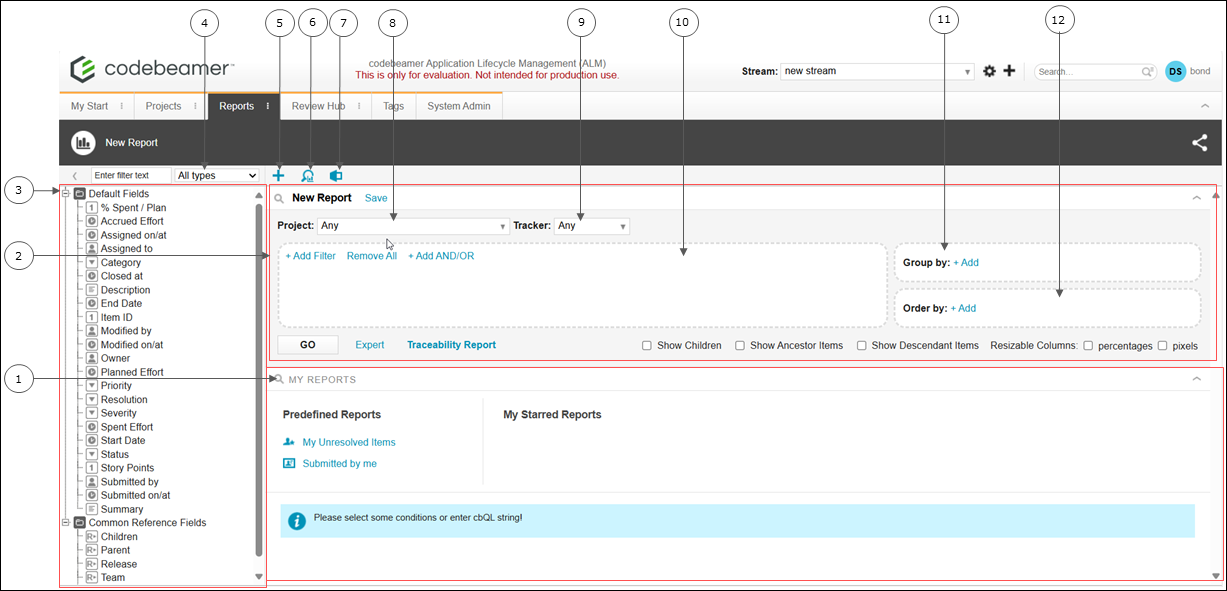
If there is no report currently open, clicking the Reports tab opens the New Report page, as shown below.
|
#
|
UI Component
|
Description
|
||
|---|---|---|---|---|
|
1
|
MY REPORTS section
|
Displays saved reports. The following reports are saved:
• Predefined Reports: My Unresolved Items and Submitted by me.
• My Starred Reports: Reports that have been starred.
|
||
|
2
|
New Report section
|
Displays the context menu, the report editor section, and the Save, Go, and Expert buttons.
|
||
|
3
|
Fields section
|
Displays the available fields in a tree format. By default, it displays common reference fields and fields that are most often used in trackers.
Displayed fields can be dragged and dropped to the Filter list, to the Group by and Order by sections, and to the Result table header. When dragging a field, sections where it can be dropped are highlighted.
|
||
|
4
|
Filter list
|
Allows filtering fields by type, for example, choice, member, reference, and so on.
|
||
|
5
|
 New Report New Report |
Creates a new report.
|
||
|
6
|
 Find Reports Find Reports |
Opens the Report and Traceability Report Finder, which allows searching for and opening specific reports. For more information, see Finding a Report.
|
||
|
7
|
 Export to Office Export to Office |
Opens the Export Reports window, which allows exporting the results from the result table into Microsoft Excel.
|
||
|
8
|
Project list
|
Opens the list of projects to be included in the report.
|
||
|
9
|
Tracker list
|
Opens the list of trackers to be included in the report.
|
||
|
10
|
Filter section
|
Allows adding filters to the report, as follows:
• Add Filter: Displays a list of filters. Multiple filters can be selected. For more information, see Filtering Report Results.
• Remove All: Removes all the applied filters.
• Add AND/OR: Adds AND/OR logic to filters, using numbers to represent filters that have been added. For example:
1 AND (2 OR 3) Where 1, 2, and 3 are the first, second, and third added filters. For more information, see Filtering Report Results.
|
||
|
11
|
Group by
|
Allows grouping the results in the results table, based on the selected fields. For more information, see Grouping Report Results.
|
||
|
12
|
Order by
|
Allows setting the order of the results as ascending or decreasing for the selected field type. For more information, see Ordering Report Results.
|

In addition to the above, the following options are also available on the New Report page:
• Traceability Report
Creates a traceability report, which correlates multiple sets of trackers or tracker types in a desired order and visualizes their dependencies. For more information, see Traceability Report.
•  Generate Shareable URL
Generate Shareable URLGenerates a shareable URL with the selected settings.
• Expert
Enables the Expert mode. Expert mode allows using a special text-type filter that accepts cbQL strings. Clicking Expert hides the Project selector, Tracker selector, filter list, Group by box, and the Order by box. An editable text section is shown.
 |
If you use AND/OR Logic, the cbQL is not editable.
|
Expert mode supports some cbQL functions, for example escalation-type cbQL functions, that are not supported in the Simple mode. It also allows for more complex AND/OR and NOT logic. Switching back to Simple mode can only be done if it supports the added cBQL, that is, if the cBQL is not too complex and it is syntactically correct. If the Simple mode does not support the added cBQL, a warning is displayed and the Expert mode is not turned off.
When a report using Expert mode is saved, Codebeamer marks the report as advanced. By default, the Advanced reports open in the Expert mode.
• Show Children, Show Ancestor Items, and Show Descendant Items
If only one tracker is selected in the report, ancestor (parent) and descendant (child) items of the result can be included. To include ancestor or descendant items in a view, select one of the checkboxes when you run a report.
|
|
Switching on any of these settings disables grouping and ordering.
|
• Results section
Appears at the center of the screen, under the MY REPORTS section after clicking Go or editing an existing report. The Results section displays the results of completed reports. For more information, see Result Table.
View Report Page and Edit Report Page
If a report is currently opened, clicking the Reports tab opens the report in View Mode or Edit Mode. For more information on View Mode and Edit Mode, see View Mode and Edit Mode.