Import ReqIF into Streams as a Non-Administrator User
This page describes importing the ReqIF files into streams by non- administrator user roles.
ReqIF files can be imported into streams other than the initial stream of a project. Non-administrator user roles with the proper permissions can import ReqIF files using the Trackers tab.
Permissions
To manage the usability of the ReqIF import function for non-administrator user roles, the Data Administration tracker permission has been introduced.
The Data Administration permission is automatically provided to the project admin role by default.
User roles with Trackers - Administrate permission is automatically provided to the project administrator role.
User roles with the Trackers - Administrate permission have administration rights for work item type trackers. The CMDB - Administrate permission grants administration rights for configuration type trackers.
Although having of any of the Project - Administer, Trackers - Administrate and CMDB - Administrate permissions indicates the entitlement for the Data Administration permission, possessing any of them is not a prerequisite for being granted the Data Administration permission. The project administrator can grant the Data Administration permission to any user role.
If existing trackers or existing user roles have either the Trackers - Administrate permission, the CMDB - Administrate permission, or both, the project administrator can manually grant the Data Administration permission to the relevant user roles.
If new trackers are created with either the Trackers - Administrate permission, the CMDB - Administrate permission, or both, the Data Administration permission is automatically provided to the relevant role.
The Data Administration permission applies to the following:
• Work item type trackers for roles with Trackers - Administrate permission only.
• Configuration item type trackers for roles with CMDB - Administrate permission only.
If the project administrator and other roles have both of the Trackers - Administrate and CMDB - Administrate permissions, the Data Administration permissions applies to all tracker types.
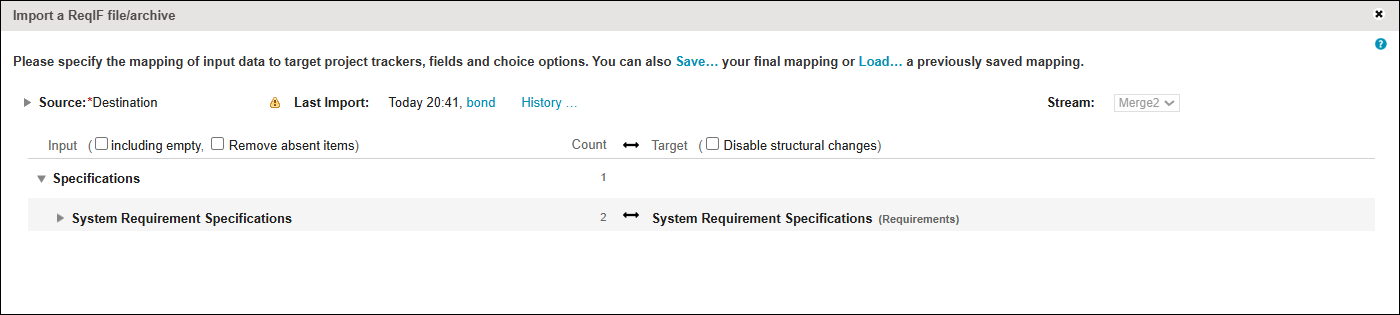
Although the Import ReqIF... option is accessible in the user interface for all users, only roles with the required permissions can perform the mapping between the input and the target specifications on the Import a ReqIF file/archive window and complete the import process. The Item-Edit and Item-Add permissions are also important for the successful ReqIF file import.
 |
The user importing the ReqIF file must also have all of the required permissions for the target tracker and fields to be able to complete the mappings and finalize the import process.
|
The permissions can be configured on the stream level as well as on the tracker level. For example, User B can have the required permissions for Tracker B in stream B, but have no permissions for the same tracker in the initial stream.
|
|
During upgrade, the upgrade script checks the project roles and grant the Data Administration permission to all users with the Project - Administer, Trackers - Administrate and CMDB - Administrate permissions.
|
|
|
• When a project is created from a template, the Data Administration permission is not automatically added to roles with the Project-Administer, Trackers - Administrate or CMDB - Administrate permissions as the permissions for the default template roles are not modified. The Data Administration permission is only automatically provided if new trackers or roles are added to the project. The built-in project administrator, that is, the user creating the project, is automatically granted the Data Administration permission.
• After upgrading, double-check the tracker > Permissions tab whether the Data Administration permission is granted for the relevant roles in the relevant trackers, and restore the permission if needed.
|
Import ReqIF Files Using the Trackers Tab
To import a ReqIF file from the Trackers tab, complete the following steps:
1. Click the Trackers tab of the selected project.
2. Select the relevant stream in the top right Stream selector.
3. From the context menu 
4. Click the context menu Import ReqIF... option.
5. Double-click the file to be imported and the Import a ReqIF file/archive overlay opens.
6. Complete the mapping and import the file.
By default, the target stream is the one previously selected on the Trackers tab. An additional stream selector is available on the top right corner of the Import a ReqIF file/archive overlay as well.
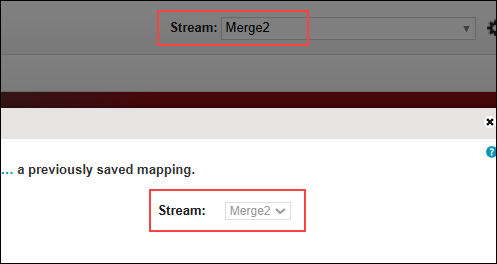
If the target stream is changed on the overlay, the details in the Specifications section, that is, the available trackers, fields, choice field options or references, are updated based on the selected target stream.
|
|
• A ReqIF file can only be imported into one stream. For instance, a ReqIF file already imported into Stream A cannot be imported into the Initial Streams.
• New trackers cannot be created in streams, only in initial stream.
|
Source Files
The ReqIF source files created when importing files into streams are stored in separate folders under the > tab folder, to differentiate them from the ones created for the initial stream. The naming convention of the folders is working-set - working-set ID.
For example: working-set-3465633.
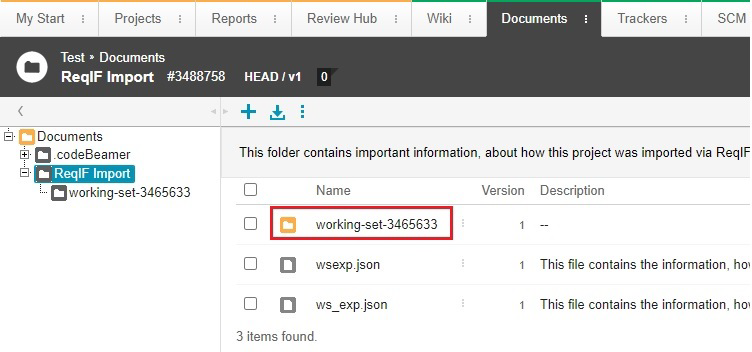
The source files for the streams operate the same way as for the initial stream. When using the source file of a previous import, the mapping configurations saved in the source file are reapplied to the current import.
Import ReqIF Update Files
Importing a given ReqIF file into a stream for the first time is an initial import. During an initial import, the input and the output specifications, thus, the available trackers, fields, choice field options and references need to be mapped correctly to each other. The configurations, mappings set for the initial import are saved with the creation of the source file.
In case changes have been made in the source project the exported ReqIF file of which was imported to your project at the initial ReqIF import, the new ReqIF file containing the changes can be imported again into your project or stream as a ReqIF update.
Since the updated ReqIF file comes from the same source project as the one used for the initial import, the source file saved during the first import can be selected in the Source selector of the Import a ReqIF file/archive overlay. By selecting the same source file, the mapping settings applied for the initial import are used to update your stream.