Dashboard
Dashboards can be used to create expressive and informative boards.
The retrieval and presentation of information stored in an Application Lifecycle Management (ALM) system is a difficult process. Information must be summarized, tailored to cater to the needs or demands of a diverse audience, each operating at a different scope across a range of business scenarios.
Codebeamer provides parametric wiki plugins, each presenting a specific piece of information. Using plugins, information can be customized and arranged to meet various information requirements.
Project homepages, personal homepages, tracker homepages, and new wiki pages can all be customized using plugins.
Overview
The root wiki page of any Codebeamer project or personal wiki space is a dashboard.
Dashboards inherit many features from wiki pages . For example, permission management, export content, or having child pages, but dashboard features focus narrowly on visualization. Users can choose from the available widgets, which forms the basis of all dashboards. These widgets are rendered using user-selectable layouts and support drag-and-drop to simplify the arrangement of widgets within the layout.
Toolbar
A toolbar on the top left side of the dashboard offers a multiple options to create, modify, extend, and customize dashboards:
•  New Child Page—Click to create new child wiki pages to extend and develop the knowledge base.
New Child Page—Click to create new child wiki pages to extend and develop the knowledge base.•  New Child Dashboard—Click to create a new child dashboard within Dashbaords.
New Child Dashboard—Click to create a new child dashboard within Dashbaords.•  Add Widget—Click to select from the available widgets that can be added to the wiki page. For more information, see Widgets.
Add Widget—Click to select from the available widgets that can be added to the wiki page. For more information, see Widgets.•  Select Layout—Click to change the layout of a project wiki page.
Select Layout—Click to change the layout of a project wiki page.•  Context menu—Click to see further menu options. The following options are available:
Context menu—Click to see further menu options. The following options are available:◦ Properties—Shows and allows editing the properties of the dashboard.
◦ Add Comment—Shows and allows adding comments to the dashboard.
◦ Tags—Shows and allows editing the tags added to the dashboard.
◦ Export Dashboard to Word—Exports the dashboard to a Microsoft Word document.
◦ Export Multiple Pages to Word—Allows selecting pages of the dashboard to export to a Microsoft Word document.
◦ Follow—Notifies the user of changes to the dashboard.
◦ Lock—Disables editing the dashboard for other users. Shown only if the dashboard is not locked.
◦ Unlock—Enables editing the dashboard for other users. Shown only if the dashboard is locked.
◦ Delete...—Deletes the dashboard. Not available for top-level dashboards.
◦ Copy—Copies the dashboard to the clipboard.
◦ Paste—Pastes the copied dashboard as a child of the current dashboard. Shown only if a dashboard has been copied.
◦ Show parent—Shows the parent of the current dashboard. Shown only for dashboard that have a parent.
Dashboards for Different Scopes
Dashboards can be set up for a project, a set of related projects, a teams, or for an individual user.
On the project Wiki tab, the followings can be displayed:
• Project summary
• Recent activities
• Basic statistics
• Team members
• Useful quick links to the most important project resources.
To implement a common dashboard for a set of related projects, create an umbrella project and use its Wiki tab, or use a regular wiki page in one of the projects.
Common dashboards for a set of related projects can display the following:
• Merged activity streams
• Aggregated statistics
• Shortcuts to jump quickly into the sub-projects.
On the tracker pages, the following can be displayed:
• Recently submitted bugs
• Recent comments
• Number of open versus resolved issues
• Number of issues by various fields (status, assigned to, and so on).
For personal use, the following can be displayed:
• Aggregate issues from projects
• Artifacts related to the milestones.
• Starred items
• Quick links
Example Dashboard Layouts
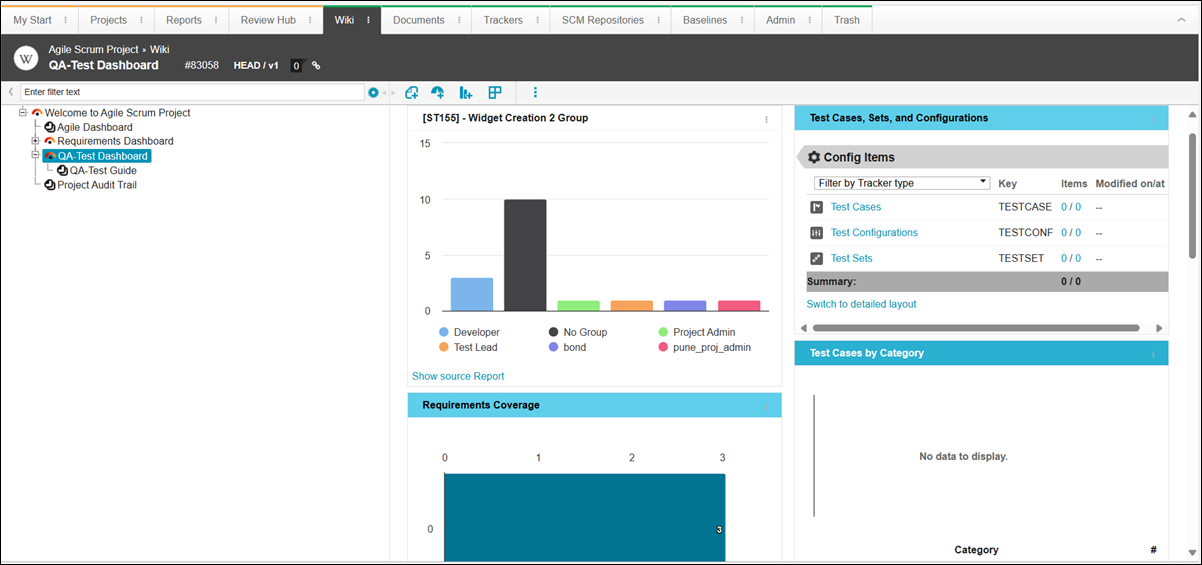
Dashboards in Codebeamer are special type of wiki pages. For more information on widgets that can be added to a Dashboard, see Widgets.