Codebeamer User Interface
After you successfully log in, the following page appears with the My Start selected by default.
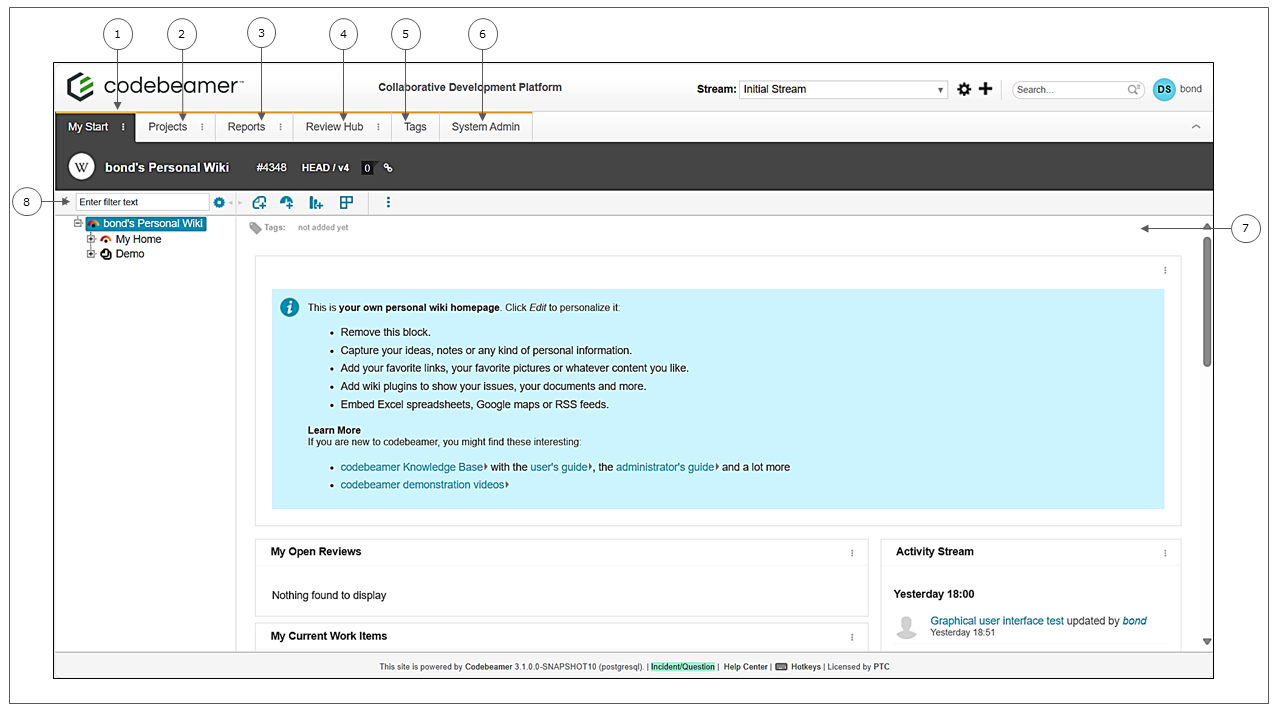
1. My Start: Displays the My Personal Wiki page by default. You can customize this page as per your requirement. For more information, see My Start.
2. Projects: Displays the project browser user interface where you can view and navigate between projects and, manage the project groups. For more information, see Projects.
3. Reports: Searches the work items You can find reports for later reuse across multiple projects using cbQL. For more information, see Reports.
4. Review Hub: Provides an overview of a Tracker, Release, or Report to be reviewed at a specific time. For more information, see Review Hub.
5. Tags: Displays all tags that are attached to any of the Codebeamer entities. For more information, see Taxonomy: Categorizing Content with Tags.
6. System Admin: The System Admin tab is a web-based console which enables user and system management. This tab is available for administrators only.
7. Right Pane: Displays all content and data that you save on the My Wiki page. You can add widgets and customize this page as needed.
To customize this page you can:
◦ Click  —Add a new child page.
—Add a new child page.◦ Click  —Add a new child dashboard.
—Add a new child dashboard.◦ Click  —Add widget.
—Add widget.◦ Select  —Select a layout for the dashboard.
—Select a layout for the dashboard.◦ Click  — This opens the more menu with the following options:
— This opens the more menu with the following options:▪ Properties—Enables the editing of the properties of the wiki page.
▪ Add Comment—Enables adding comments to your wiki page.
▪ Tags—Assigns tags to your wiki.
▪ Star it—Allows you to star the wiki page.
▪ Export Dashboard to Word—Exports the wiki dashboard to Microsoft Word
▪ Export Multiple Pages to Word—Allows you to export multiple wiki pages to Microsoft Word. You can also choose to export from the following options:
▪ Use template—Select the template from the drop down list.
▪ Upload Office Template—Click Upload Office Template and select a template to upload. Alternatively, you can drag-and-drop files in this area.
▪ Follow—Allows you to follow the wikipage.
▪ Lock—Enables you to lock the dashboard.
▪ Copy—Copies a wiki dashboard/wiki page
8. Filter box: Enter the name of the dashboard or wiki page to access it faster.
9. Upgrades and SLA: Provides information on how to obtain the latest version of Codebeamer and validates if the current instance matches the most recent version. This section also includes information on Codebeamer maintenance. This tab is available only to administrators with a specific configuration.