Configuring Codebeamer Tracker Fields for Preview in IBM ETM
You can specify the Codebeamer tracker fields that appear in IBM ETM OSLC previews. Such fields can be selected on a per-tracker basis.
To select the fields for OSLC previews, do the following:
1. Log in to Codebeamer.
2. Select the Projects tab and click on the project containing the tracker.
3. Select the Trackers tab.
4. Right-click a tracker in the tracker tree and select Configure.
5. Select the OSLC DPT Preview tab as shown:
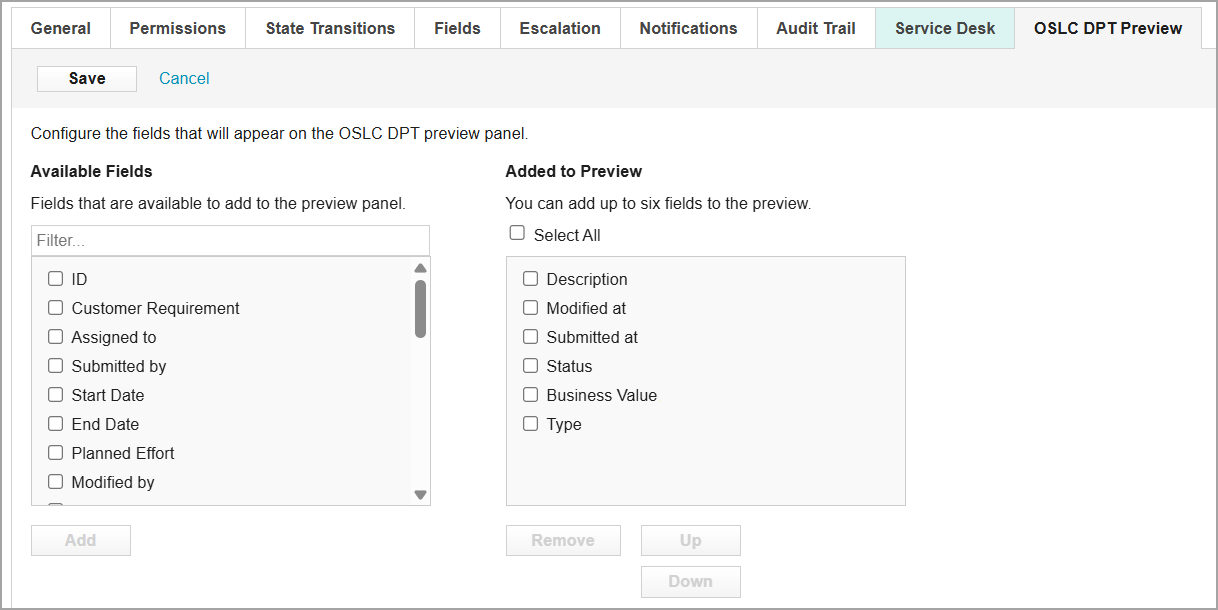
6. Select the appropriate field under Available Fields and click Add. The field is added to the Added to Preview pane. Click Up and Down to change the field order.
You can select up to six fields. Hidden fields are displayed with a  icon following the field name. Such fields appear in the OSLC preview. However, the field values are displayed in the preview based on the tracker field configuration logic.
icon following the field name. Such fields appear in the OSLC preview. However, the field values are displayed in the preview based on the tracker field configuration logic.The Title and Streams fields are not available for selection because these are displayed by default as the first two fields in the preview.
If you add Comment/Attachments, this field might not display correctly in the preview. Click the link in the preview to view the details.
7. Click Save.