Condition
Each state transition can be linked to a condition that determines whether the transition should be executed for the tracker item, which is the source of the triggering event.
The Condition contains following options:
• None: No condition is applied to state transition.
• Expression: Enter a boolean expression or formula that must yield a result either true or false.
For example:
◦ priority.id == 3 (with 1 as Highest and 5 as Lowest)
◦ storyPoints <= 6
◦ severity[0].id == 1 (with 1 as blocker and 4 as minor)
For more information refer, Computed Fields
• Leads back to previous subject item status: Enter this condition to revert the item status to its previously available state.
• State transitions from a review state can be linked to the current review outcome under specific conditions:
◦ Subject approved: The transitions are only permitted if the review outcome for the current item status is affirmative. The transition is allowed to the designated status once the subject is approved.
For example: Configure an approval for Resolve status for bugs type tracker as follows:
1. Create a new action Start a new review for state transition Draft to Resolved.

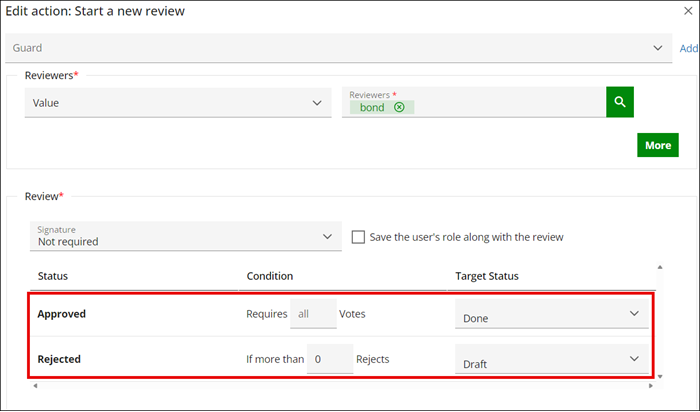
2. Set Target Status under review as Done for Approved and Draft for Rejected.
3. Apply Condition as Subject approved for state transition Done to Complete.
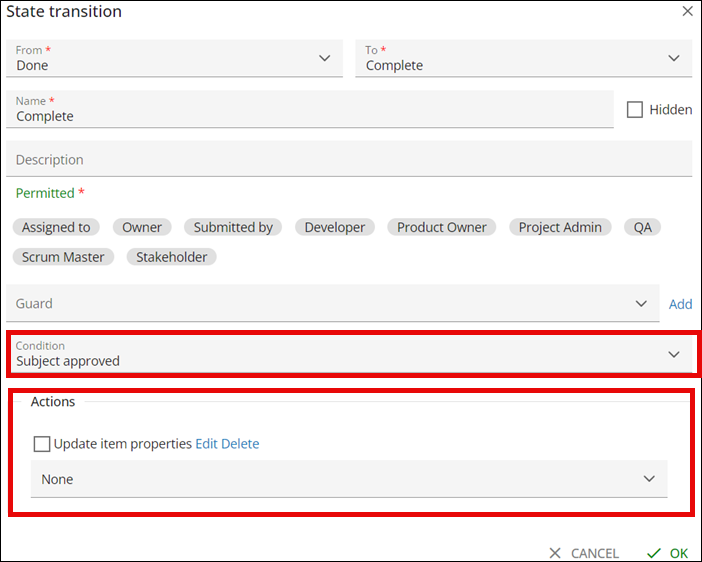
Note: | In this step, you can set additional actions, such as updating item properties. When a state transition occurs, and the field value gets updated. For more information see, Actions |
4. Change the status of the bug item from Draft to Resolved. As per configuration the status is Resolved and item is under review.
5. Change the status from Resolved to Review. A confirmation window appears either to Approve or Reject the review.
6. Select Approve. Item status changes to Done.
7. Change Status to Complete. A field value get updated as discussed in step 3.
◦ Subject rejected: The transitions are only permitted if the review outcome for the current item status is either declined. The transition is allowed to the designated status once the subject is rejected.
For example: Configure an rejection for Resolve status for bugs type tracker as follows:
1. Create a new action Start a new review for state transition Draft to Resolved.
2. Set Target Status under review as Done for Approved and Draft for Rejected.
3. Apply Condition as Subject rejected for state transition Done to Complete.
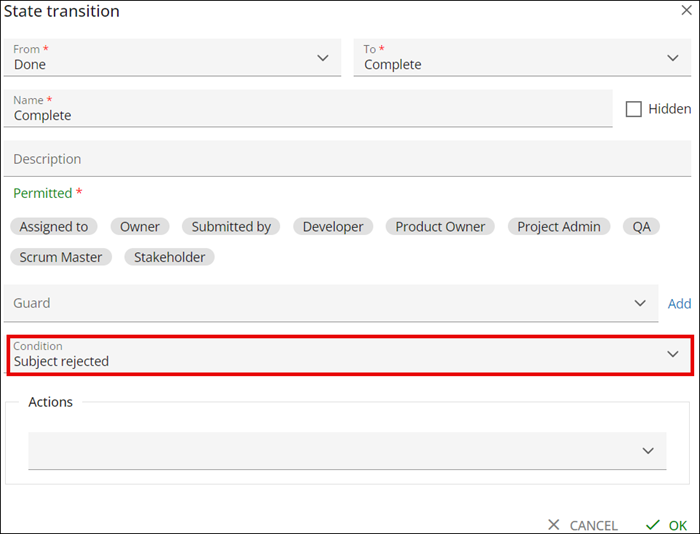
Note: | In this step, you can set additional actions, such as updating item properties. When a state transition occurs, and the field value gets updated. For more information see, Actions |
4. Change the status of the bug item from Draft to Resolved. As per configuration the status is Resolved and item is under review.
5. Change the status from Resolved to Review. A confirmation window appears either to Approve or Reject the review.
6. Select Reject. Item status changes to Draft.
Note: | It is neither necessary nor recommended to explicitly set these conditions. |
Parent topic