How to Import Test Cases with Test Steps from Excel
To import the test cases:
1. Select Test Cases under Tracker tree.
2. Click  .
.
.3. Select MS Office under Import.
4. Select the Microsoft Excel option and attach the test case Excel file and click Next.
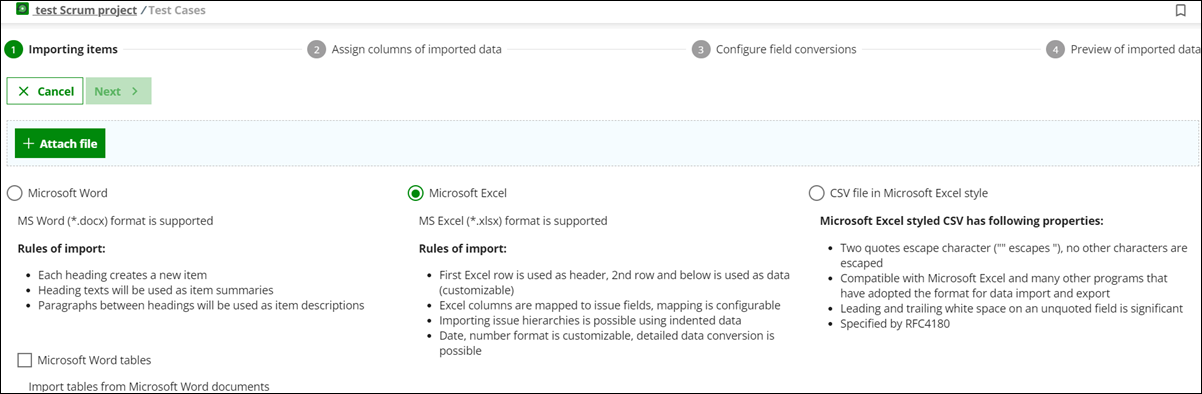
5. Assign all column to the correct field, except ID and click Next.

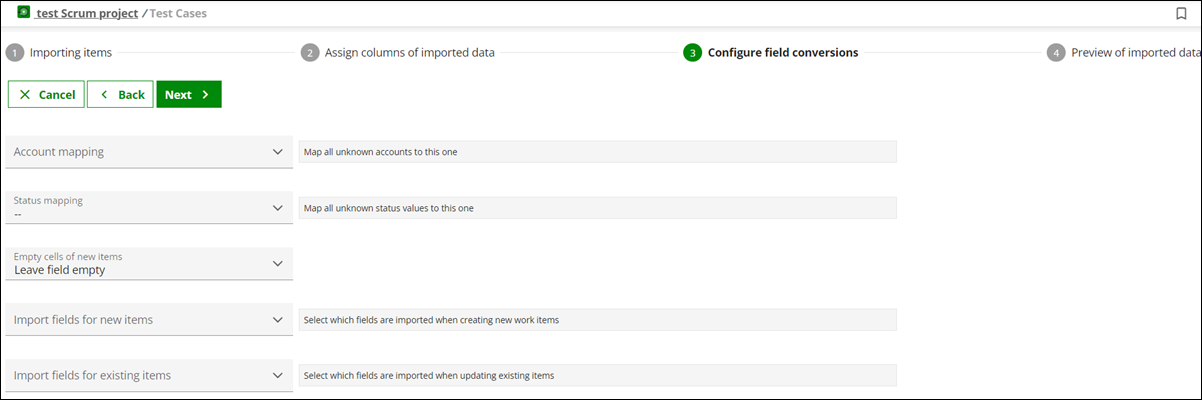
6. Configure advanced field conversations and click Next.
Note: | When multiple test steps are present and the ID column is not mapped, Codebeamer X merges multiple Excel rows and imports them into a single tracker item if they have the same summary or the same summary and description. For more details, refer to Handling Multiple-Choice Fields During Excel Import When ID Is Not
Mapped. |
7. Review the preview screen and click Finish.
Parent topic