Tips, Tricks, and FAQs
Avoid Excel Cell Limits: Shorten the Long Content
Excel has certain limitations of the content, one of which is that a cell cannot contain more than 32767 characters. This limits your template exports description field, which may contain longer text than this limit.
To fix this, the description should be abbreviated during export. For example,
${StringUtils:abbreviate(items.description, 1000)}
If this limit is exceeded, Excel reports a Repaired Records, String properties from /xl/sharedStrings.xml part (Strings) error, when opening the result Excel file, indicating the issue.
Exporting the Description and other Wiki content as Wiki source
When the Description field or other Wiki-type field is exported to Excel, the Excel export contains the wiki source instead of the same output shown inside Codebeamer. For example:
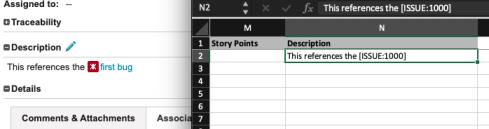
When exporting content, for example, the description of a bug, from Codebeamer to Excel, the content is exported as its wiki source. Therefore, formatting updates such as hyperlinks, bold text, italic text, can not be exported to Excel. This is because Excel cannot display full HTML content or Rich Text formatting.
Text exported from the wiki to Excel is plain text that includes Rich Text tags. For example, the Rich Text tag for bold text is a __double underscore__. Therefore, when exporting text that appears as bold text on the wiki, is shown enclosed in double underscores in Excel like __bold text__.
If __bold text__ is imported back to Codebeamer, it is shows bold text . This simplifies the roundtrip exporting.
Converting Exported Content to Plain Text Using a Groovy script
If you want to export Codebeamer content to Excel without Rich Text tags, the text must be converted. The following Groovy script converts exported text to plain text, without Rich Text tags:
org.apache.commons.text.StringEscapeUtils.unescapeHtml4(textFormatter.formatAsText(...))
The above script includes two parts as follows:
textFormatter.formatAsText(...)
org.apache.commons.text.StringEscapeUtils.unescapeHtml4(...)
The first part of the script, textFormatter.formatAsText(...), does the following:
1. It renders the wiki to HTML.
2. It converts the HTML to plain text by removing HTML tags. For example, <b>bold</b> is converted to bold.
3. The converted text is escaped using HTML4 escaping. This is done to avoid any XSS related issue, since this text is typically used on WEB pages.
As a result of HTML4 escaping, certain artifacts appear in the converted text. For example, the script converts " to ", since " is the equivalent HTML entity of ".
The second part of the script, org.apache.commons.text.StringEscapeUtils.unescapeHtml4(...), unescapes the text, which means it will undo the escaping in the last step of the first script. For example, it converts " back to ".
Exporting Codebeamer Content Using Microsoft Word
Microsoft Word supports HTML content or Rich Text formatting. When exporting content from the wiki using Word, the output content matches the Codebeamer content.
Using Regular Expressions
Regular expressions, Regexp, is a tool that you can use in Excel templates. For example, you want to extract the domain name from the email of the user who has reported issues. The following users/emails have reported issues:
[email protected]

[email protected]
You want to get the domain name in a cell like javaforge or PTC should be extracted, so a report can be made which explains how many bug reports there grouped by the companies. So the result should be:
javaforge

PTC
You can then use Regexp and the next Groovy script, which extracts the domain part:
<cb:groovy template="false" silent="false"> email = item.submitter.email; domainRegexp = /@(.*?)\./; matcher= (email =~ domainRegexp); return matcher[0][1];</cb:groovy>
Using this method works well but can be complex. An alternative is to use a Regexp:findFirst() custom function, which can extract the first match of a Regexp. This produces the same result:
${Regexp:findFirst(item.submitter.email, "@(.*?)\.", "$1")}
The Regexp:findFirst() function accepts the following parameters:
• First parameter is the input string to extract value from.
• Second parameter is the Regexp to find in the input string.
• Third parameter is optional and contains the expression that tells what to extract. The $0 text will extract the complete match, the $1 will extract the 1st group from regexp, and so on.
Additionally, the Regexp:findAll() function is available and works similarly to the find First method, yet scans for all matches, and puts the results to a List (of Strings).