Work Time Management
This topic describes the work time management functionality that allows users to log time spent on various tasks
Recording Work Time Spent on Issues
Codebeamer allows you to record the working time spent on issues per:
• User
• Day
• Issue
• Kind (of Work)
• Activity
The work log is stored in an extra Timekeeping tracker, that is available out of the box for new projects For more information on how to add time tracking to existing projects see: Creating and Customizing Trackers.
The time recording function is available in the following cases:
• The Time Recording option is licensed, and
• An issue tracker is associated with a tracker of type Time Recording, such as the default Timekeeping tracker, and
• The Aggregation rule column of the Spent Effort field in this tracker has the Sum/Total value.

• The current user has Edit permission for Spent Effort in the current issue status.

• The current user has the Add Issue permission on the Time Recording tracker.
The time recording option (if active) can be visualized as a clock icon with a plus sign in the Spent Effort field on the issue details screen, as shown in the following image:

Clicking the plus icon opens a time recording window for the current user and issue.

In this dialog box, you can enter your Spent Effort (at the specified Date) including the Kind (classification/categorization) and description of your Activity.
• The Date defaults to today, but you can log time entries up to 90 days retroactively if needed.
Note that you cannot date ahead your time recordings beyond the current day.
• You can enter the Spent Effort in the following formats:
◦ hh:mm—For example, 0:30 or 30min is equivalent to 30 minutes, 1:15h is equivalent to 1 hour and 15 minutes.
◦ As decimal of an hour—For example, 1.5 is 1.5 hour, and it is equivalent to 1:30h.
• The estimation of your Remaining Effort is optional.
The middle section of the dialog shows the current work estimate, the total of the actual work and the total effort personally recorded by the current user on this issue before.
If you have already recorded work on this issue, the bottom section of the dialog shows your latest recorded activities in descending order:
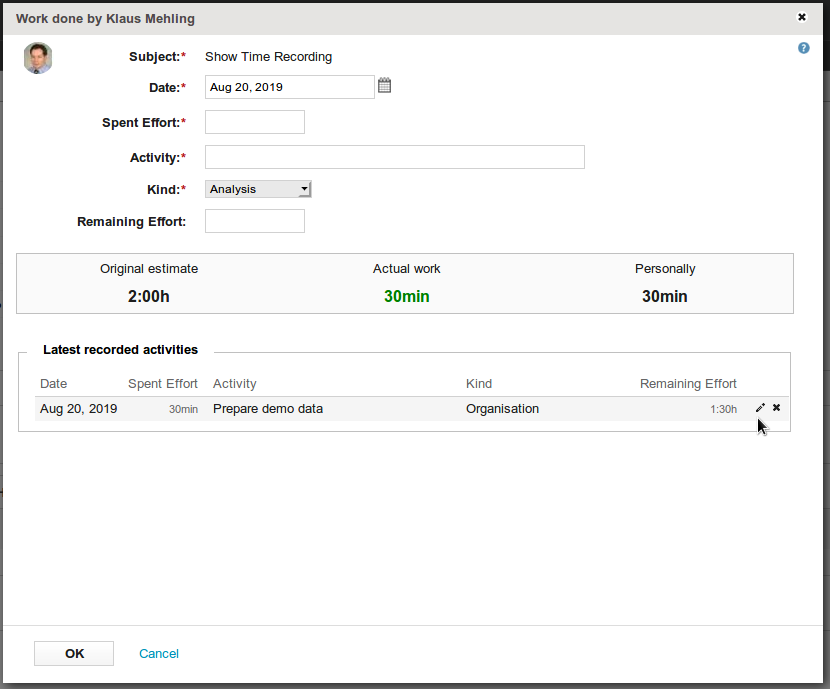
As long as the time recordings are only recorded and not booked yet, you can modify and even remove recordings.
 |
Limitation:
The time recording dialog supports only basic Timekeeping fields. Fields that use reference‑based choice values cannot be populated in the dialog and must be edited directly in the Timekeeping tracker.
|
Reporting Work Time Spent on Issues
You can retrieve reports about time spent by users on issues in multiple ways. For more information, see the following sections.
Work Log tab on the Issue Details screen
If an issue has existing time recordings, an additional Work Log tab appears on the issue in detailed view:
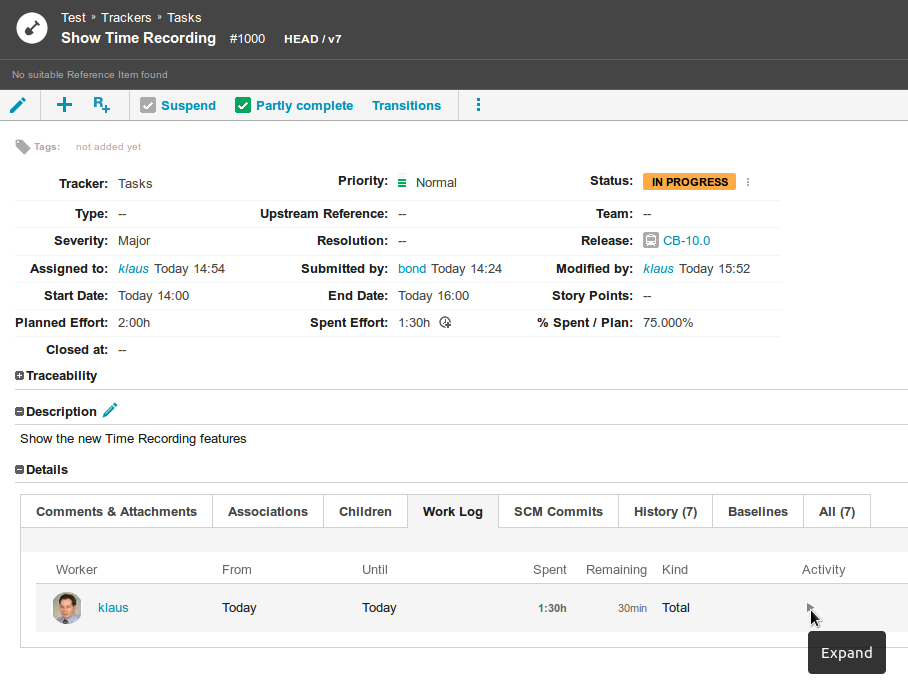
The Work Log shows all users who have recorded work on this issue, including:
• The working period From / Until.
• The total Spent effort (by this user on this issue).
• The estimated Remaining effort (of this user on this issue).
You can expand the work summary of a user to see the individual work log items (time recordings):

You can modify or remove your own work log items as long as they are recorded but not yet booked.
Via Reports on the "Timekeeping" tracker

Project Admins can see and edit the time recordings of all project members, other members can see and edit their own recordings (dependent on the permission settings).
Via Reports on issue trackers

You can also include time recordings per issue when exporting the results of a report. See the following example in Excel:
