Importing Tables from Word Documents
You can import tabular data from a Microsoft Word document into a tracker to create multiple work items.
This is useful when:
• A Word document is generated by another tool and contains data in tabular format.
• Your organization uses Word tables instead of Excel for advanced formatting or image support.
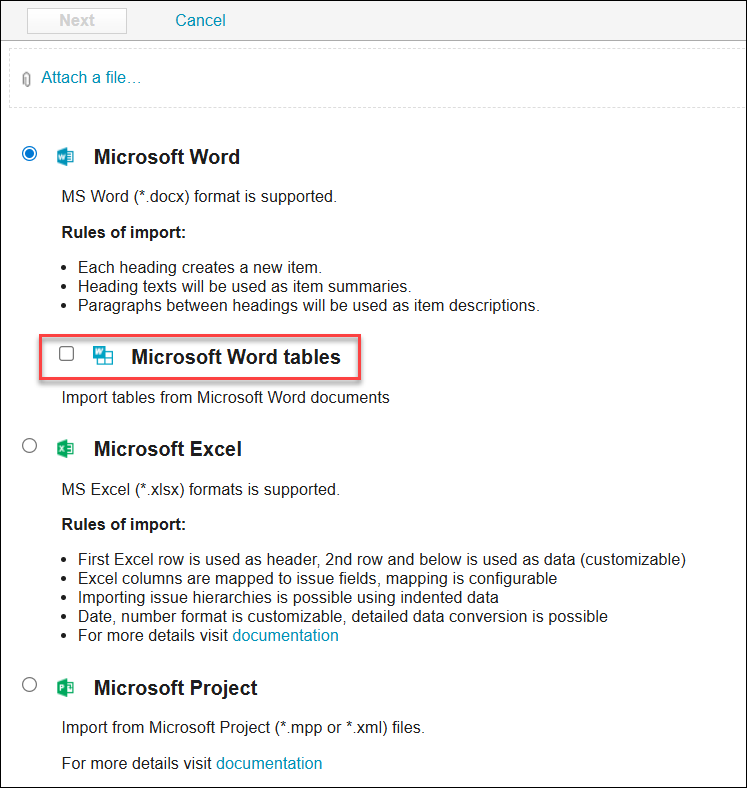
The Microsoft Word tables import option appears on the first page of the import wizard for any tracker.
Using Table Import from Word
Follow the below given steps to import tables from Word:
1. Upload the Word file in the tracker import wizard.
2. Select Microsoft Word tables import.
3. Click Next.
4. If the Word file contains multiple tables, use the Importing part drop-down to switch between them. The preview reloads to display the selected table’s data.
5. Map the table’s columns to the target work item fields.
When you select a table, the page reloads and the preview displays the selected table’s data.
Continue as you would with an Excel import. Adjust the mapping between the table’s columns and the target work item fields, and then complete the import.
 |
The Word table import workflow is the same as the Excel import workflow.
|

Features
The Word table import provides functionality similar to the Excel import:
• Each Word table cell converts to wiki format. The resulting text imports into the corresponding work item field as plain text.
• If a cell contains an image and maps to a field, the image is extracted and attached to the target work item.
• Only top-level tables load directly. Nested tables are supported and convert to wiki format. For example, a nested table appears in the Description field as a wiki table.
Known Limitations
• Merged or split table cells are not supported (https://support.office.com/en-us/article/Merge-or-split-cells-in-a-table-8b458deb-0fc5-4c8d-8d94-2d4da98193f8)
• Only top-level tables are supported. Nested tables are converted to wiki tables during import.
• Cells from Word tables are converted to wiki text. It is not possible to import content as plain text without formatting. For example, bold text remains bold.
• Table formatting, borders, and styles defined using Microsoft Office Table Design are not imported in Codebeamer. See the PTC Support article www.ptc.com/en/support/article/CS420448 for more details.
• All imported table data is treated as text.