Computed Fields
This topic introduces the concept of computed fields and gives an in-depth explanation of how you can use such fields and the functions that are available in Codebeamer.
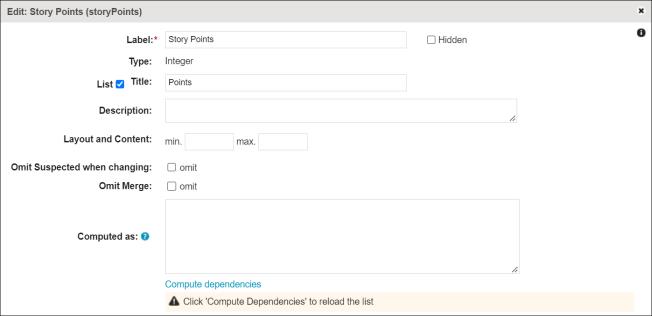
Tracker fields can be defined as read-only computed fields, in which the content is calculated from other tracker item fields. Computed fields can be created by specifying an expression or formula in unified expression language.
 |
Some built-in fields, such as Summary, ID, Parent, Description, Status, Submitted on/at, Submitted by, cannot be defined as computed. The Computed as section is not available for these fields.
|
To handle computed fields, Codebeamer must ensure that the underlying tracker item property and the historical or new field values in the database are up to date which means it is recomputed and updated in the database.
When a formula is added or changed in the Computed as field or any computed parameter changes directly or indirectly, the computation can take considerable time. In such cases, Codebeamer shows the following message: Computed fields are being recomputed in this Tracker so their values might be stale and will be updated soon....
|
|
Deleting a tracker does not trigger any calculated fields.
|
Application Configuration for Administrators
The Codebeamer administrators can configure the behavior of the computed fields using the Application Configuration. For more information, see the "computed-update" application configuration. For technical and development related information on the language expressions, see About the Technical Details of the Expression Language in Computed
Fields.
Use Cases
Use Case 1: Past Deadline Test for Issue Resolution
In this use case, the goal is to display whether the item has already passed the scheduled end date. In a tracker, click  > > > .
> > > .|
|
Past end date is indicated with a red exclamation mark for an item in Codebeamer.
|
The custom field is called Past Deadline, and you must set it to the boolean type. The field returns true if the item is very late. Under the Layout and Content column of the fields, for the custom field, the = field is defined as:
not(endDate >= fn:Date("today"))
Select the checkbox in the List column on the Fields tab, to display the custom field on the item list or details page. You must set up permissions on the Permissions tab. A computed field is always read-only; write permission is only possible when the field definition is deleted, and the field becomes non-computed. For more information about functions available for the computed tracker fields, see Functions.
Use Case 2: Weight = Priority * Severity
The goal is to combine issue priority and severity into a new Weight field with the following expression:
Weight = Priority * Severity
Priority is a single choice field with the following choice values:

Severity is a multiple-choice field with the following defined values:

|
|
All choice fields except Status and Priority, are lists or arrays of values. However, the user interface for static choice fields currently only allows selection of a single value. So, in order to access the first or single value of a multiple-choice field, you must use the [0] operator. For example, Severity[0].
|
The highest priority and the highest severity (Blocker) selections have the lowest ID. So, to compute a Weight proportional to the logical order of Priority and Severity, you must use operands that are inversely proportional to the choice value IDs.
Example:
integer Weight = (5 - Priority.id) * (6 - Severity[0].id)
An empty Priority or Severity yields an ID of null, and the above formula returns the highest-possible weight = 30 for issues with empty Priority and Severity. To avoid this incorrect result, the empty values must be handled appropriately.
Example:
integer Weight = (empty Priority ? 0 : 5 - Priority.id) * (empty Severity ? 0 : 6 - Severity[0].id)
Use Case 3: Compute columns in an embedded table from the values of other columns
A tracker item can have tables. A table consists of one or more columns as shown below:

The first two columns, A and B contain numeric operands, and the other two columns must contain the product and sum or total of the operands per row.
When addressing a table column, for example by its attribute or property name tableColumn[0,1], the whole column is always addressed as an array or vector of column values, indexed by row.
Example of the Matrix table:
|
A
|
B
|
|---|---|
|
1
|
5
|
|
2
|
6
|
|
3
|
7
|
The expression A or tableColumn[0,0] yields [1, 2, 3] and B, or tableColumn[0,1] yields [5, 6, 7].
To address the whole table, use the name or attribute of the table, for example, Matrix or table[0], which yields an array of table rows, where each row is an array of table column values in the order of the columns.
[
  [1, 5],
  [2, 6],
  [3, 7]
]
The index of the first row is 0 and the first table row can be accessed using one of the following ways:
• table[0][0]
• Matrix[0]
This yields [1, 5]
To address the value of column A which is tableColumn[0,0] in the second row of the matrix, write:
• table[0][1][0]
• Matrix[1][0]
• tableColumn[0,0][1]
• A[1]
We define a third column, Product, whose value is the product of A multiplied by B for each row in the following way:
If the Product is defined to be computed as:
• tableColumn[0,0] * tableColumn[0,1]
• Or simply A * B
Then this means a multiplication of two vectors, for example, [1, 2, 3] * [5, 6, 7], which is an operation that is not supported by the expression language.
In addition, the result is a two-dimensional array, and not a one-dimensional column value vector.
The solution is to use a projection: table.{ row | expression} that iterates over each row in table and produces an array of values, one value per row according to the expression.

The projection or expression is the following:
table[0].{row | row[0] * row[1] }
It reads as follows:
• Iterate over table[0]
◦ For each row which is an array of column values. Evaluate the expression row[0] * row[1]
• Return an array of the expression values per row.
For example, in the table, the result is the array or vector: [5, 12, 21]
|
|
The tableColumn[x,y] is a fixed property name text, and y is not adjusted when column position is changed. When defining formulas involving table columns, do not rely on the order of columns, but check the property names. You can do this by selecting the Show property name checkbox in the field configuration dialog box.
At other places, [y] is used as an index number and not as text. For example table[x][y] refers to the y-th row in table[x].
|
Changes from Codebeamer
 |
The interpretation of table column indices has changed for Codebeamer and could break expressions written in older versions.
|
In older versions of Codebeamer, a column index was interpreted as the ordinal index of the column in the table columns list. Adding, removing, or re-ordering columns could therefore change the ordinal index of a column.
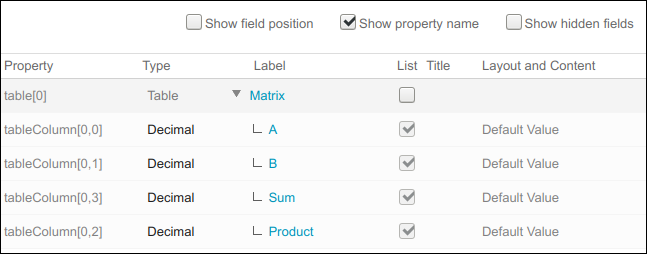
The ordinal index of Product, that was 2, is now 3, which leads to an inconsistency in table cell access using the table column index: table[0][row][3]
!= tableColumn[0,2][row]
In Codebeamer, a column index is always interpreted as the immutable and unique column ID, which is the second index in the immutable and unique column property name.
For example, the column ID or index of Product (tableColumn[0,2]) is 2, that is independent of its position. Adding, removing, or re-ordering columns does not change the column ID or index of existing columns and column access stays consistent: table[0][row][2]==tableColumn[0,2][row]