Tracker Items List View
After you open a tracker, the tracker items window is displayed. This window contains all the tracker items for the opened tracker. For example, if you open a bugs tracker then all the bugs that are available in that bugs tracker are displayed on this page.
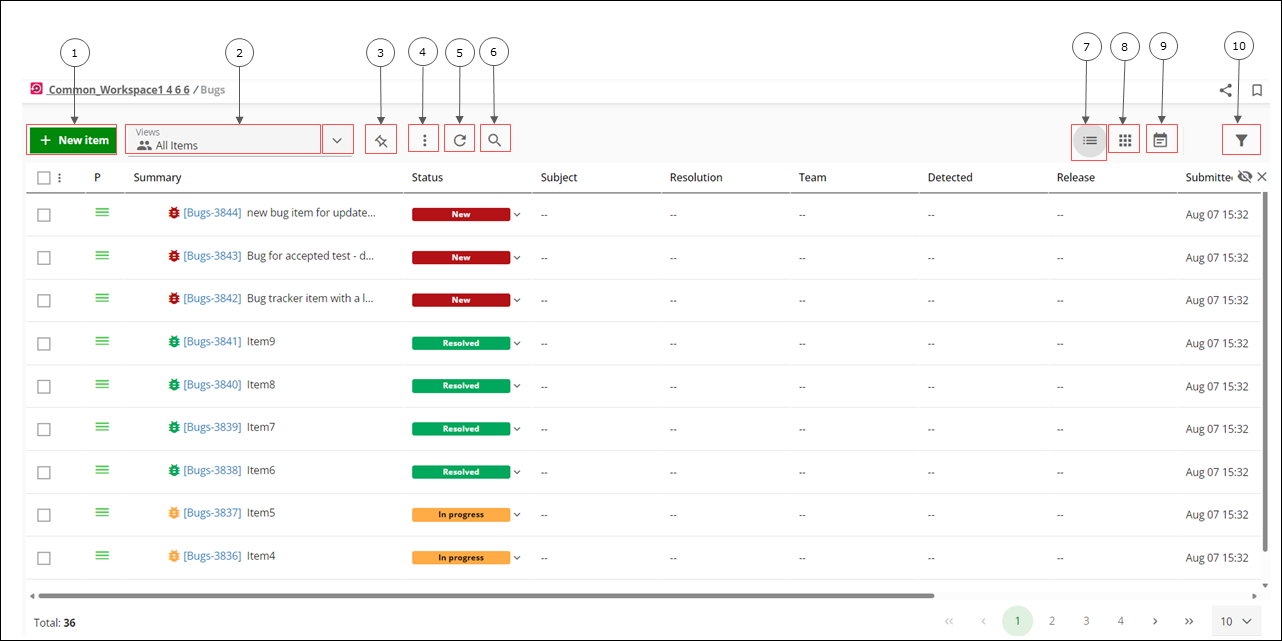
|
Legend
|
Component
|
Description
|
|---|---|---|
|
1
|
+ New item
|
Click to navigate to the New item window to create a new tracker item for the current tracker.
|
|
2
|
Views
|
Click to select an option to filter all the tracker items available inside the table. The following views are available by default:
• Open
• All Items
• All Unresolved
• All Resolved/Closed
• All Overdue
• All Overtime
• Assigned to me
• Submitted by me
• Updated recently
• Resolved recently
The tracker item table is filtered based on one of the earlier mentioned views. For example, if you select the Assigned to me option in the Views list, then all the tracker items that are assigned to you are displayed inside the table.
|
|
3
|
 Set as default view Set as default view |
Click to set the current view as a default view.
|
|
4
|
 More actions More actions |
Click to view the following options:
• Share View: Shares item view via e-mail to the members of the project.
• Start review: Hover over this option to view the following:
◦ All: Select this option to send all the tracker items available inside the table for a review in the review hub.
◦ Selection: Select this option to only send the selected tracker items for a review in the review hub.
• Import:
• Export to MS Office: Hover over this option to view the following:
◦ All...: Select this option to export all the tracker items.
◦ Selection...: Select this option to export the selected tracker items.
• Tools: Hover over this option to view the following:
◦ Traceability browser: Click to navigate to the Traceability browser page. For more details, see Traceability browser.
◦ Inspect all changes: Click to navigate to the Inspect all changes page. For more details, see Inspect all changes.
• Configuration: Click to open the tracker configuration settings. For more details, see Tracker Configuration.
|
|
5
|
 Refresh view Refresh view |
Click to refresh the current view.
|
|
6
|
 Search items Search items |
Click to search for a tracker item inside the tracker items table.
|
|
7
|
 List view List view |
Click to switch to the list view. This option is selected by default.
|
|
8
|
 Kanban view Kanban view |
Click to switch to the Kanban view. For more information, see Kanban.
|
|
9
|
 Calendar view Calendar view |
Click to switch to the Calender view.
|
|
10
|
 Filter Filter |
Click to open the filter pane. For more information, see Filters.
|