Target Fields
For each mapped Specification, item type, and relation type, the corresponding type attributes must either be mapped to target tracker fields or explicitly ignored.
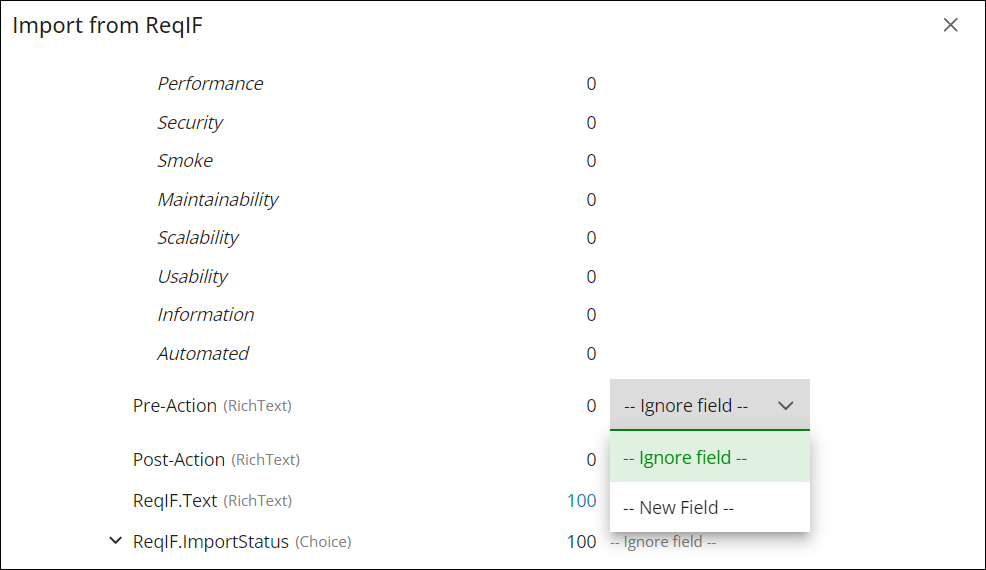
Ignoring empty attributes may not always be appropriate. To modify the imported data, set values for these fields and re-export the updated data. To include empty attributes in the mapping, select the Include Empty checkbox in the header.
Input attributes can only be mapped to target fields that are compatible with their attribute type.
If no predefined field matches the input attribute, a new field can be created by selecting New Field at the bottom of the dropdown list.
If the mapping of a ReqIF attribute to a target field is ambiguous (for example, both ReqIF.ChapterName and Summary could be mapped to Summary), the following tools can help clarify the correct mapping:
• The count column, which displays the number of items where the field has a value.
• The list of the first ten field values, which can be viewed by clicking the number in the count column.
• In the Example 2 above: Only one item has a ReqIF.Name, but nine items have a ReqIF.ChapterName:
◦ Use ReqIF.ChapterName for Summary.
◦ Ignore the ReqIF.Name.
• In the Example 3 above: The item type heading has a ReqIF.ChapterName and a ReqIF.Name.
◦ However, as the values of ReqIF.ChapterName and ReqIF.Name are the same, you can:
▪ Use ReqIF.Name for summary.
▪ Ignore ReqIF.ChapterName.
Only for item type:
• If there is no attribute (for example, ReqIF.Name or ReqIF.ChapterName) associated with the item Summary, then the LONG-NAME of the SpecObject item is used as the item name/summary.
• If there is no extra attribute (for example, ReqIF.Text) associated with the item description, then the DESC of the SpecObject item is used as the item description.
The Ignore all or Assign all option can be applied to attributes that share a common prefix—for example, ReqIF.*.
For choice attributes with discrete values, a target choice field must be assigned, and each input attribute option must be mapped to a corresponding option in the target choice field.
If no predefined option matches the input value, a new option can be created by selecting New Value at the bottom of the value dropdown list.
Parent topic